
开始使用
探索面向科研人员的新一代智能工作流。
简介:化繁为简的科研全链路
传统的科研工作往往是割裂的:在不同数据库间检索、使用文献管理软件整理、切换到各类 AI 工具辅助阅读,最后还要打开排版软件制作报告。ScienceOne 将这些支离破碎的步骤整合为一个单一、无缝且深度智能的工作环境。
它不仅是一个对话助手,更是一个集文献调研、学术写作、数据检索和成果可视化于一体的科研工作站。借助 ScienceOne,您可以在此推进从"寻找灵感"到"成果展示"的整个学术价值链。
这种一站式的科研范式意味着您可以:
- 全景式文献调研:一键直连中科院文献情报中心、arXiv 及全球学术资源,或基于您的个人文献库,让智能体为您梳理研究脉络和引文图谱。
- 深度阅读与批注:告别泛泛而读,对单篇或多篇海量文献进行精读解析,自动提取核心观点、研究方法及局限性。
- 沉浸式推演研究:独创的深度深度研究,通过单智能体闭环架构(AgentLoop),实时透视 AI 拆解问题、收集信源到生成答案的完整思考过程。
- 学术级内容生成:仅需提供自然语言指令或上传源文件,即可自动生成数万字的文献综述、符合学术规范的 PPT 汇报、专业海报及配图。
- 全链路资产管理:您的每一次推演记录、过程文件及个人研值资产,都由系统安全、有序地统一归档。
ScienceOne 消除了在繁杂工具间切换的摩擦力,让您将核心精力重新聚焦于「研究」本身。
快速上手:开启您的第一次智能研究
使用 ScienceOne 开展研究是一个极其自然的过程。无论您是需要解答一个细微的学术疑问,还是要完成一篇宏大的综述,都可以遵循以下核心步骤快速启动。
1. 确立研究意图并抛出问题
一切从首页的对话框开始。根据您的任务复杂度,选择最适合的模式,并用自然语言描述您的需求:
- 日常释疑:默认的「极速模式」可以瞬间解答您的学科疑问。
- 深度挖掘:切换至「深度研究」,告诉它:"帮我调研近三年关于固态电池能量密度提升的前沿方案,并对比各方法的优劣。" 描述越详细,智能体规划的路径越精准。
2. 构建或接入专属知识库
如果您已有特定的研究范围,在提问前可点击「设置」或进入「文献库」模块。您可以上传本地文献,构建您的专属知识库。您不仅可以限定智能体只在您的库中寻找答案,还能让它结合全网 1.7 亿篇科技论文交叉验证,确保结果的权威性。
3. 见证智能体的深度思考
当您在「深度研究」下提交任务后,ScienceOne 将在左侧过程区向您展露它的「思考全过程」。您将实时看到它如何拆解任务、调用网络搜索或查阅文献库、提取信息。而在右侧的工作区,所有被引用的信息源、图表和阶段性文件都会清晰列出。每一个结论都真实可溯源。
4. 一键转化科研成果
研究有了结论,接下来是展示。您无需离开平台,直接在对话框底部切换至转化工具:
- 需要汇报?点击「学术 PPT」或「学术海报」,上传您的文档,系统将自动解析结构、生成大纲,并排版出符合学术审美的可视化文件(支持中英双语及主题色切换)。
- 需要插图?唤起「科研配图」,描述您需要的实验流程图或分子结构,系统即刻生成专业配图。
登入系统
首次使用 ScienceOne 需要注册并登入您的个人账号。
1.1 访问门户
ScienceOne官方地址:https://www.scienceone.cn,推荐使用Google Chrome浏览器或Microsoft Edge浏览器。
1.2 注册账号
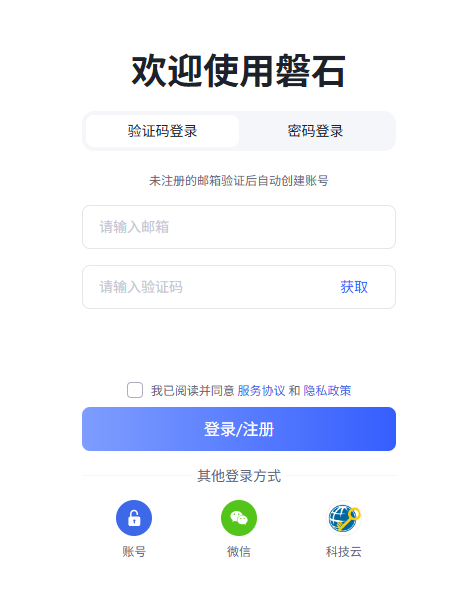
首次进入"磐石"时,需要您注册账号。系统为个人用户提供邮箱、微信注册功能,在输入框输入邮箱地址,并点击"获取"按钮,即可获取验证码,输入正确匹配的验证码,即可完成注册,并自动创建账号;也可点击页面底部"微信"图标,通过微信扫码完成注册。
1.3 登录账号
支持以下两种主要登录方式:
- 验证码登录:输入邮箱,点击「获取」收取验证码后登录。未注册的邮箱验证后自动创建账号。
- 密码登录:输入邮箱及账号密码登录。
此外,还支持通过账号、微信、科技云三种方式登录,可在页面底部选择。
1.3.1 账号密码登录
如果您已有完成注册的账号及其密码,可点击账号和密码登录,正确输入账号密码后即可登入系统。
1.3.2 验证码登录
如果您有已注册成功的手机号或邮箱,可点击验证码登录,正确输入手机号/邮箱地址及验证码后即可登入系统。
1.3.3 机构登录
如果您所在机构已接入ScienceOne,点击机构登录,选择您所在的机构,通过机构登录成功后即可登入系统。
科学对话
2.1 对话模式
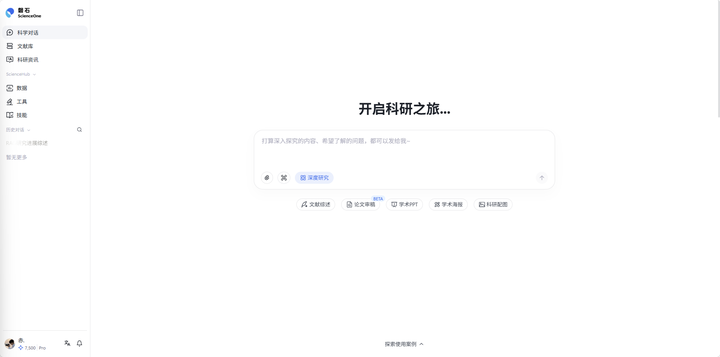
科学对话面向文献调研、学科问题解答、研究报告撰写、可视化报告生成、文献综述等场景,提供多种使用模式。
深度研究:更全,适用于调研、报告、挖掘研究思路等场景,整合海量信息,全方位支撑科研决策。
文献综述:更透,专用于超长文献综述场景,深度解析万篇文献,全面梳理研究脉络。
论文审稿:更优,适用于投稿前论文的自查和论文的辅助审稿,精准剖析论文的可优化之处,让论文精益求精。
学术 PPT:更专,适用于开题报告、学术会议汇报、研究成果展示等场景,上传文献一键生成,图片图表真实可溯源。
科研配图:更精,适用于论文图表绘制、报告插图设计、学术汇报可视化素材制作等场景,精准匹配研究内容。
学术海报:更直观,适用于学术交流、成果展示等场景,上传文献一键生成,视觉化展现研究亮点。
材料科学:聚焦材料表征解析、结构与性能分析,辅助物相判定、性能解读与材料规律预测。
化学分子:覆盖分子结构、理化、毒理与代谢数据挖掘,支撑药物筛选、化合物评估与分子知识发现。
分子生成预测:适配热力学计算、分子 / 蛋白结构模拟与参数拟合,完成稳定性筛选与计算结果智能解读。
生命科学实验:适配测序、基因编辑、细胞与合成生物实验,一站式完成实验方案设计、组学数据处理与结果分析。
2.1.1 深度研究
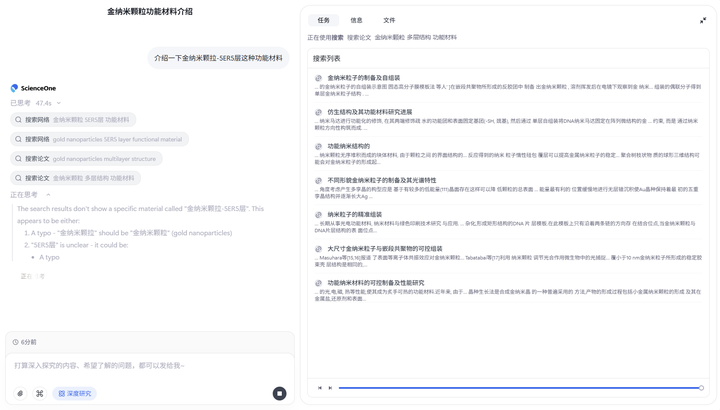
目前对话默认为深度研究,在该模式下,采用单智能体闭环运行(AgentLoop)架构,智能体会思考您的问题,并输出回答。
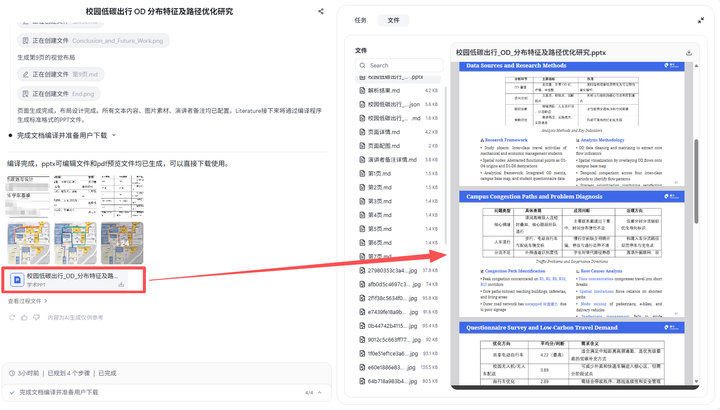
系统分为两部分:过程区(左侧)、工作区(右侧)。左侧过程区展示当前执行过程,包括思考过程、执行细节及最终生成的结果。右侧工作区包含三部分:"任务"部分展示智能体执行步骤的输出结果;"信息"部分汇总展示通过技能、网络信源、文献库收集的信息;"文件"部分展示当前任务生成的所有文件列表。
2.1.2 文献综述
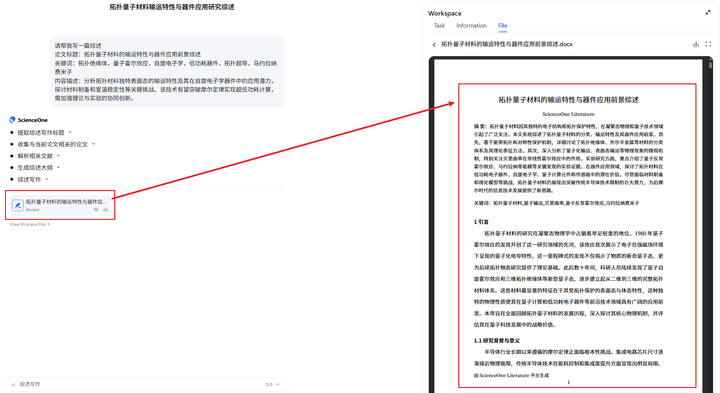
在首页对话框下方选中“文献综述”按钮即可使用文献综述模式。
在综述模式下,支持输入您的研究问题,获取数万字专业综述,在任务开始前可以选择文献库、网络信源和目标语言。

任务开始后,智能体对综述的标题、关键词等详细信息进行提取,并生成支持您修改的综述大纲,等待您的确认后再继续执行。
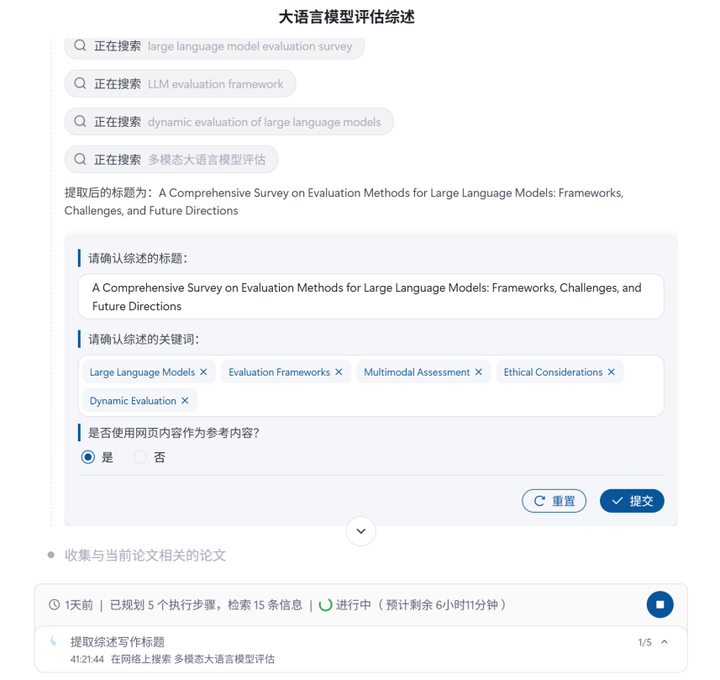
任务执行完毕后,系统会展示完整的综述报告,包括摘要、正文、参考文献等,点击【下载】即可下载pdf、word或md文件格式的报告全文。
2.1.3 论文审稿
在首页对话框下方选中“论文审稿”即可使用论文审稿智能体。
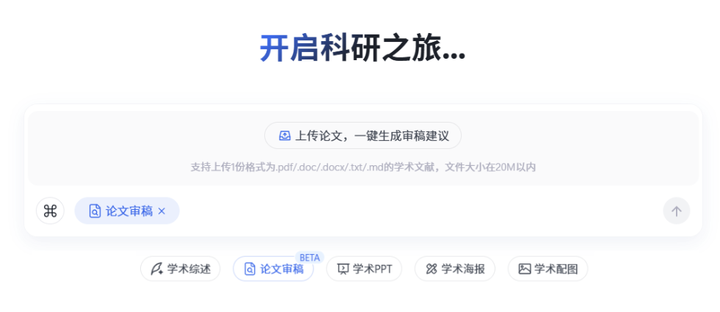
在论文审稿智能体中,可直接上传相关学术文献,支持.pdf/.doc/.docx/.md/.txt格式,限一篇论文,文件大小需在20M以内。在任务开始前可以选择产物语言,支持中英两种格式。
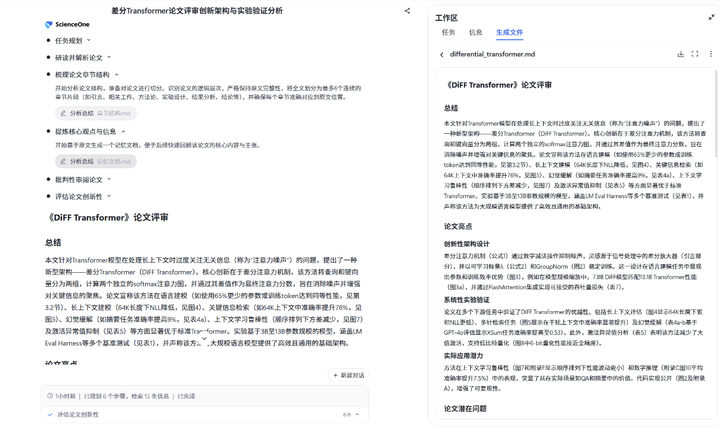
任务开始后,智能体将围绕以下几个维度,以客观的学术视角对论文展开审查:研读并解析论文内容,梳理论文章节结构,提炼核心观点与关键信息,批判性审阅论文的逻辑与表达,评估其创新性与学术贡献等。
智能体任务完成后,审稿结果以markdown格式展示,您可自由选择PDF,MARKDOWN或者DOC格式进行下载,获取最终的审稿建议。
2.1.4 学术PPT
在首页对话框下方选中"学术PPT"按钮即可进入学术PPT生成模式。支持点击附件上传1份文件大小在20MB以内的PDF、DOC或DOCX格式的学术文献。上传前可选择输出语言(中文/英文,默认为英文)和主题颜色,系统将基于您选择的配置制作学术PPT。
学术PPT智能体将调用ppt-generator技能,分为四个阶段。首先进行输入文档确认和源文档解析,系统会阅读源文件并解析论文内容及图表信息,解析过程中会在工作区展示详细的处理日志。其次,基于您选择的配置系统会生成推荐的学术PPT产物参数请您确认或修改。第二阶段生成演示大纲,系统会生成完整的PPT大纲结构并展示,您在确认或修改大纲后会进入下一阶段。第三阶段逐页生成PPT内容,右侧工作区会展示逐页的PPT生成进度。最后阶段完成PPT渲染并提供可下载的PPT文档。
整个生成过程中,右侧工作区会实时展示两个主要内容模块。任务模块显示详细的处理日志,包括文件读取、内容解析、大纲生成和PPT制作的全过程记录。文件模块分文件夹展示任务中产生的文件,包括学术文献解析后提取的图表、处理日志的txt和json文件、各生成阶段的markdown结果文件、逐页生成的PPT文件等。
2.1.5 科研配图
在首页对话框下方选中"科研配图"按钮即可进入科研配图模式。科研配图智能体底层模型使用多模态推理模型S1-Omni-Image,遵循 “先思考,后生成” 范式,支持图像生成和编辑两大功能;模型基于数理化生天地六大领域海量科研配图专项训练,适配流程图、架构图、原理图等常见科研配图类型,推流实时可视化完整绘图思考推演过程,一站式完成科研配图生成与精细化编辑。

您可以用自然语言描述需要的科研配图内容,提交配图需求后,系统将自动执行两个关键步骤完成配图生成。首先进行科研配图需求理解与相关性评估,系统会分析您的描述内容,判断是否符合科研配图要求,并评估内容的安全性和合规性。通过评估后,系统将调用S1-Omni-Image模型进行科研配图绘制,基于您的需求生成专业的学术风格图片,并会添加AI生成水印以标识来源。配图生成完成后,系统将展示科研配图生成结果。支持使用点赞/点踩功能对生成结果进行反馈,帮助系统持续优化。
此外,系统支持多轮对话来完善配图效果,您还可以在当前对话中继续提出修改建议或新的配图要求,直到满足您的学术需求。
2.1.6 学术海报
在首页对话框下方选中"学术海报"按钮即可进入学术海报生成模式。支持点击附件上传1份文件大小在20MB以内的PDF、DOC或DOCX格式的学术文献。上传前可选择输出语言(中文/英文,默认为英文)、尺寸和主题颜色,系统将基于您选择的配置制作学术海报。
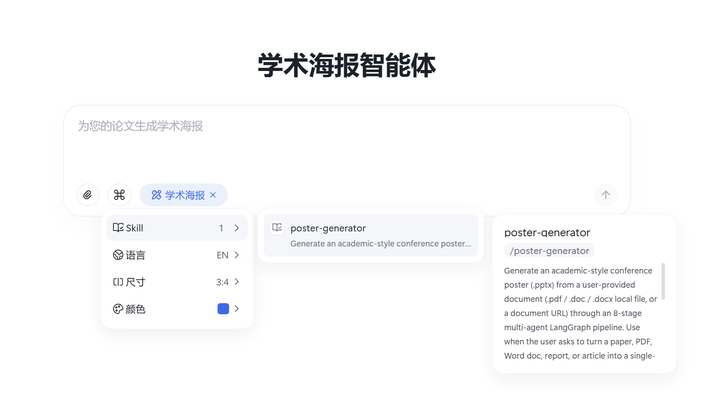
学术海报智能体将调用poster-generator技能,逐步完成学术海报生成任务。经过解析文档->确认参数->内容策展->颜色设计->标题设计->布局优化->字体设计->渲染海报->最终验证八个步骤生成可下载的学术海报。
整个生成过程中,右侧工作区会实时展示两个主要内容模块。任务模块显示详细的处理日志,包括文件读取、内容解析、海报制作的全过程记录。文件模块分文件夹展示任务中产生的文件,包括学术文献解析后提取的图表、处理日志的txt和json文件、八个步骤的markdown结果文件、最终学术海报PPT文件等。
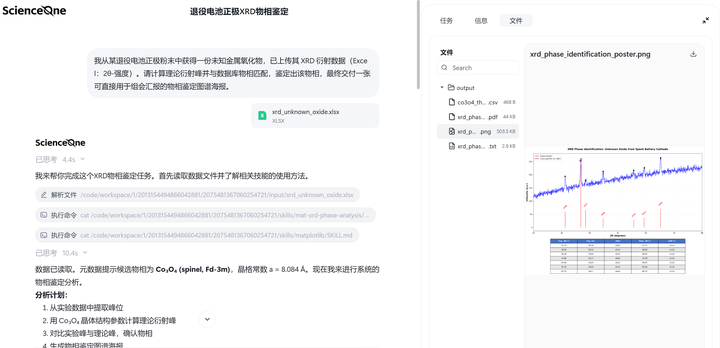
2.1.7 材料科学
材料科学智能体面向 XRD、NMR、Raman 等表征数据的解析与物相鉴定,支持材料结构、电化学性能、稳定性及构效关系分析,辅助材料性能理解与预测。
在首页对话框下方选中“材料科学”按钮即可进入材料科学智能体。支持点击附件上传10份文件大小在20MB以内的多种格式的文件。任务开始前,可自行选择需要的Skill和MCP,并按需开启或关闭知识库和信源。
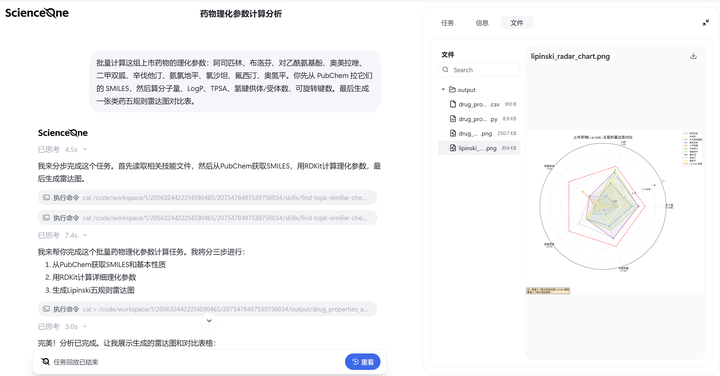
2.1.8 化学分子
化学分子智能体面向分子结构、理化性质、生物活性、ADMET / 毒理预测与代谢组学数据的检索、分析与知识发现,辅助药物研究与化合物评估。
在首页对话框下方选中“化学分子”按钮即可进入化学分子智能体。支持点击附件上传10份文件大小在20MB以内的多种格式的文件。任务开始前,可自行选择需要的Skill和MCP,并按需开启或关闭知识库和信源。
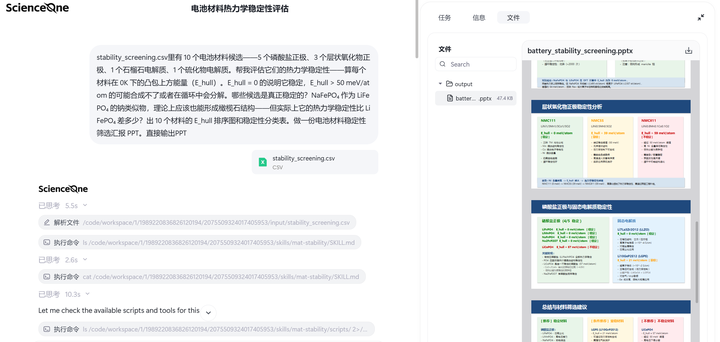
2.1.9 分子生成预测
分子生成预测智能体支持蛋白质组装界面分析、材料热力学稳定性筛选、状态方程拟合及引物 / 结构参数计算,辅助热力学性质分析与计算结果解读。
在首页对话框下方选中“分子生成预测”按钮即可进入分子生成预测智能体。支持点击附件上传10份文件大小在20MB以内的多种格式的文件。任务开始前,可自行选择需要的Skill和MCP,并按需开启或关闭知识库和信源。
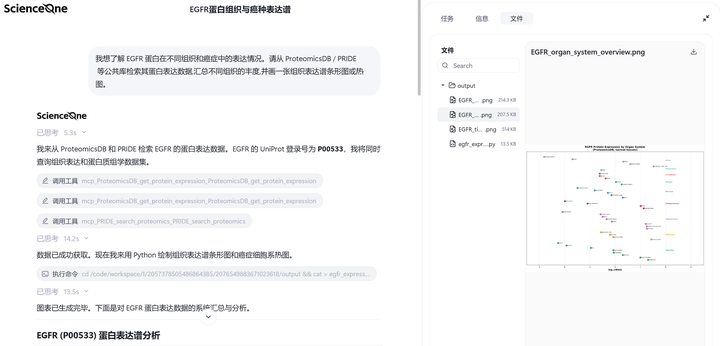
2.1.10 生命科学实验
生命科学实验智能体面向基因编辑、组学测序、遗传分析、流式细胞术、合成生物学与动物实验等任务,覆盖分子生物学到应用生命科学场景,支持实验方案设计、数据处理与结果解读。
在首页对话框下方选中“生命科学实验”按钮即可进入生命科学实验智能体。支持点击附件上传10份文件大小在20MB以内的多种格式的文件。任务开始前,可自行选择需要的Skill和MCP,并按需开启或关闭知识库和信源。
2.2 附件与设置
2.2.1 上传附件
支持上传附件以补充您的研究信息,最多支持一次上传10个文件,每个不超过20MB。
2.2.2 设置Skill、MCP、文献库与信源
点击"设置"可选择智能体的技能、MCP、信息来源和输出配置要求,其中信息来源包括文献库、网络信源;输出配置根据模式不同,支持不同配置,如在文献综述中,支持配置目标语言;在学术PPT中,支持配置目标语言和主题颜色。
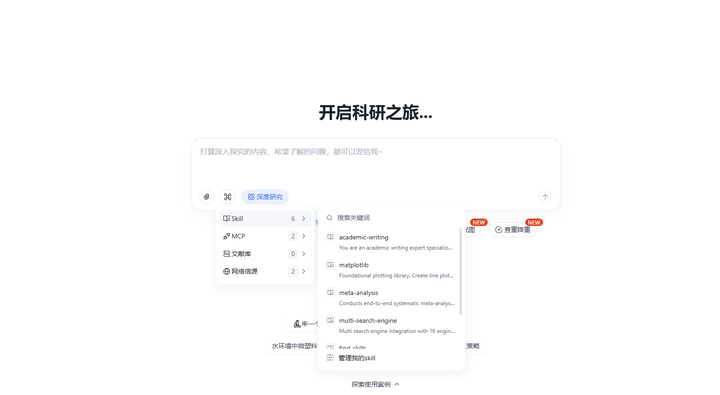
- 技能:展示支持调用的技能,您可根据具体科研场景自主选择调用的技能
- 点击对话框处的“Skill”按钮,会显示技能列表,支持点击到对话框中进行调用
- 点击“管理我的Skill”,在弹窗中可勾选最多 10 个技能供智能体自动调用
- 勾选开关的技能会自动按需触发
- 未勾选的技能可点击加载到对话框,以/[技能Slug]形式 100% 强制调用
- 超出 10 个会提示"自动触发 Skill 已达上限"
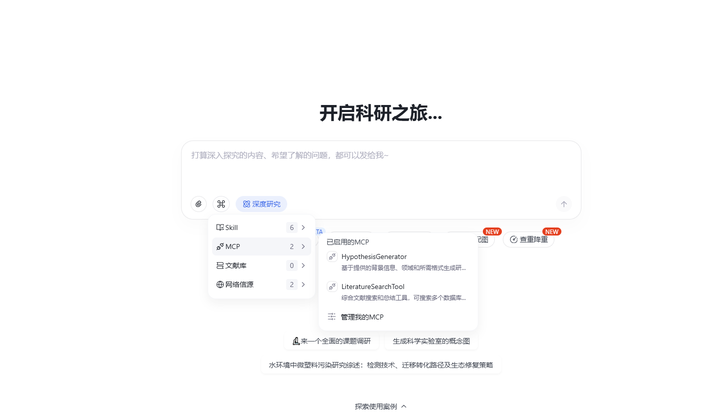
- MCP:展示已启用的MCP,您可自主配置外部 MCP,让科研助手具备可持续扩展的工具调度能力。
- 点击对话框处的“MCP”按钮,会显示已启用的MCP列表
- 点击“管理我的MCP”,在弹窗中可勾选最多 10 个MCP供 智能体 按需自动调用
- 首次启用需要填写鉴权凭证,平台会安全加密保存凭证,后续启用同一MCP不再重复填写
- 在填写鉴权凭证时可点击“测试连接”验证是否正确连接上MCP工具
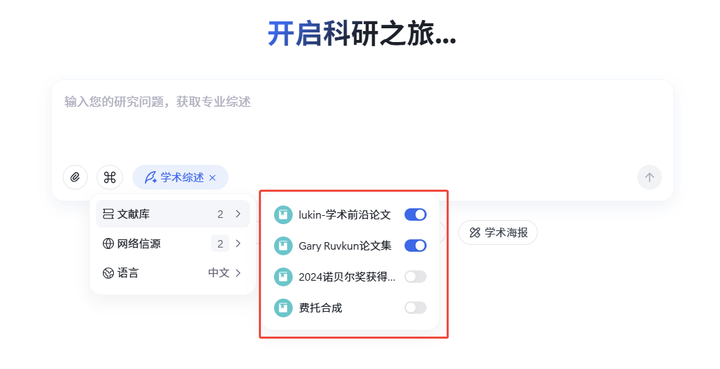
- 文献库:文献库由您根据研究需要自行创建,用于存储精选论文。您可以选择允许智能体访问的文献库。
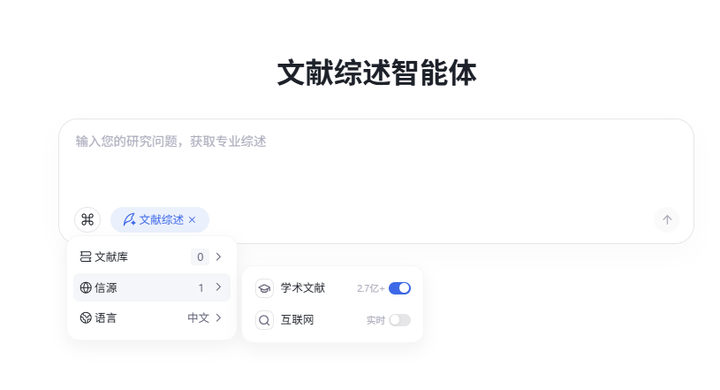
- 网络信源:网络信源包括学术文献和互联网。启用学术文献后,智能体将连接学术数据库,包括中科院文献情报中心1.7亿科技论文、arXiv 240万预印本论文,以及谷歌学术全球论文资源;启用互联网后,智能体将主动连接互联网搜索相关资料。
2.3 对话终止与新建
2.3.1 对话终止
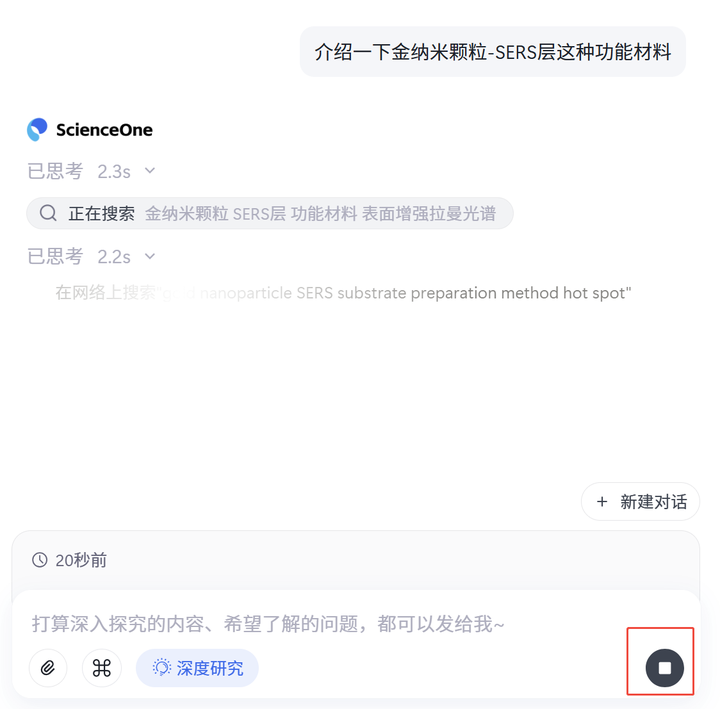
在任对话的进程中,点击终止按钮,进行中的对话将立即终止。
2.3.2 新建对话
当前对话的结束后,点击新建对话,用户将开启新的一轮对话,且新对话不受其他对话上下文影响。
2.4 进度查看
2.4.1 进度区任务查看
在深度研究中,任务会分为多步进行,点击展开可查看全部任务进度。
2.4.2 过程区任务查看
深度研究中,点击过程中每一步右侧的展开按钮,可查看每一步的详细过程。点击具体的执行动作,可在工作区查看该动作的结果。
2.5 工作区
2.5.1 进度跳转
完整的任务进度会以进度条的形式展示,用户可点击【左右】切换按钮切换上下步骤,也可以拖动进度条控制展示步骤。
2.5.2 搜索
工作区-任务中会展示每一步的搜索结果,点击可查看原链接内容。
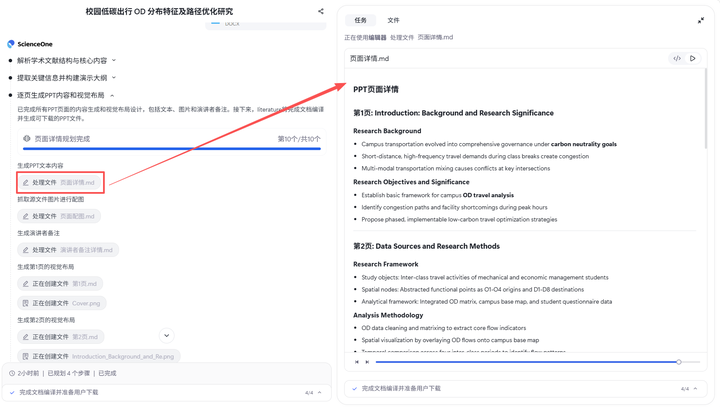
任务的全部的搜索结果可以在工作区中的【信息】中查看。
2.5.3 生成文件
在执行可能会生成分析结果等过程文件,点击执行动作在工作区可查看文件内容,并支持切换源码和预览查看效果。
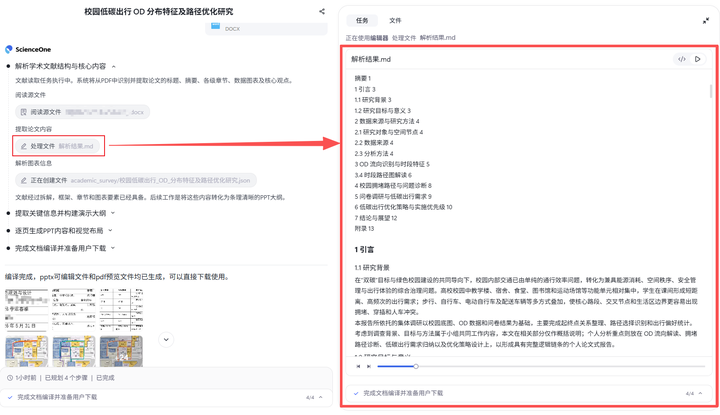
所有任务的过程结果,可以点击【文件】查看。
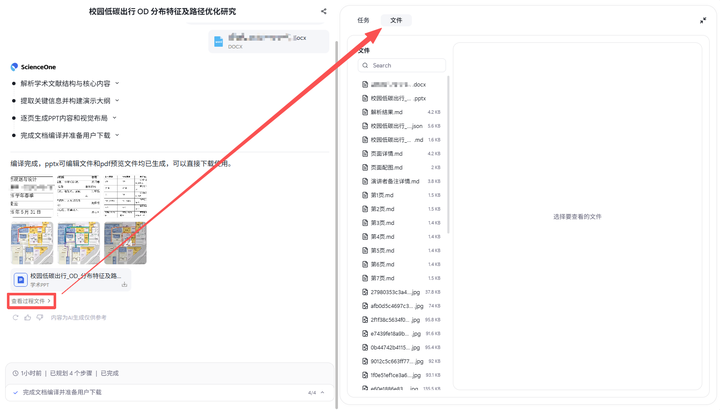
所有任务的最终结果(如可视化报告、综述等),可以点击任务结束后的报告或在工作区中找到最终结果文件查看。
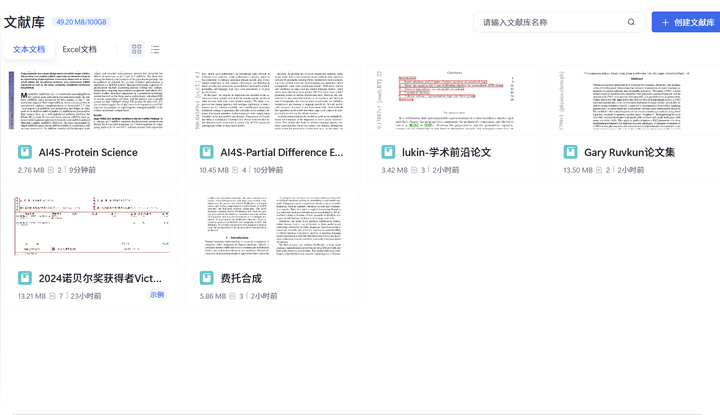
文献库
文献库模块为科研人员精心挑选的文献提供深度解读服务。将陆续集成Zotero等文献管理工具,进一步便利科研人员的日常研究工作。
3.1 创建文献库
创建文献库时,可根据文献类型选择对应的库类型。系统针对不同文献类型设计了专门的解读逻辑,选择合适的库类型能获得更好的使用效果。
3.2 上传文献
文件上传支持两种方式。
- 直接上传:在文献库管理页面直接批量上传文献文件,适合初次建库或集中整理文献时使用。
- 随时添加:在使用文献库进行研究时,可根据需要随时添加新的文献文件,便于及时补充相关资料。两种方式均支持主流文档格式,您可根据具体使用场景选择合适的上传方式。
3.3 查看文献库
您创建的所有文献库默认仅允许您自己查看,确保研究资料的私密性和安全性。
若要与合作伙伴共同研究,可通过"邀请成员"功能添加协作者,并为其设置访问权限。
其中,权限分为三个层级:"管理员"享有完全操作权限;"协作者"可创建目录和上传文献;"成员"仅可查看使用,不可修改内容。
作为文献库创建者,您可以随时调整成员角色或移除成员。确保文献库安全,团队成员管理权限仅限于创建者本人。
3.4 使用文献库
3.4.1 全库对话
您可以与文献库中的所有文献进行对话,也可以选择单篇文献进行精读。
3.4.2 单篇精读
在单篇精读界面中,您可以深度解读选定的文献,也可以随时切换到全库对话模式。
3.4.3 论文导读
论文导读提供单篇论文的核心内容解析,涵盖研究结论、研究目的、研究方法、合理性、局限性、核心观点、论据支持、应用前景和影响等方面。
3.4.4 研究图谱
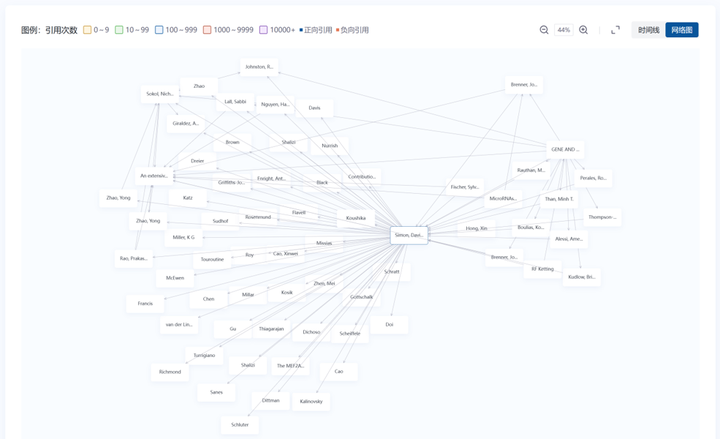
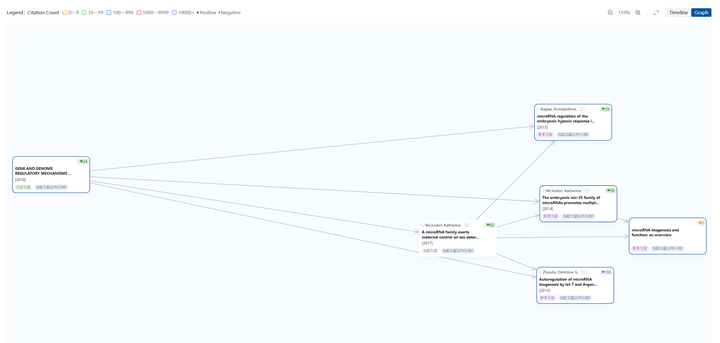
研究图谱提供引文回溯功能,以当前论文为中心,追溯其参考文献,同时探索该论文的被引情况,帮助您了解完整的学术脉络。
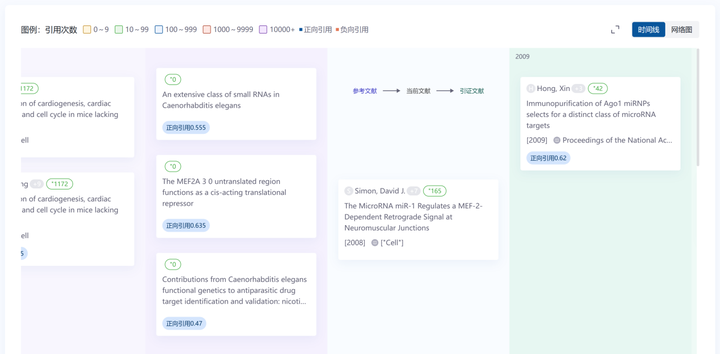
可视化网络视图可直观展示文献间的引用关系,帮助您清晰看到文献间的引用关系,便于快速识别关键研究节点。
3.4.5 文献对话
系统会预先解读每篇文献,生成常见问题并推送到界面,您可直接点击开启对话。
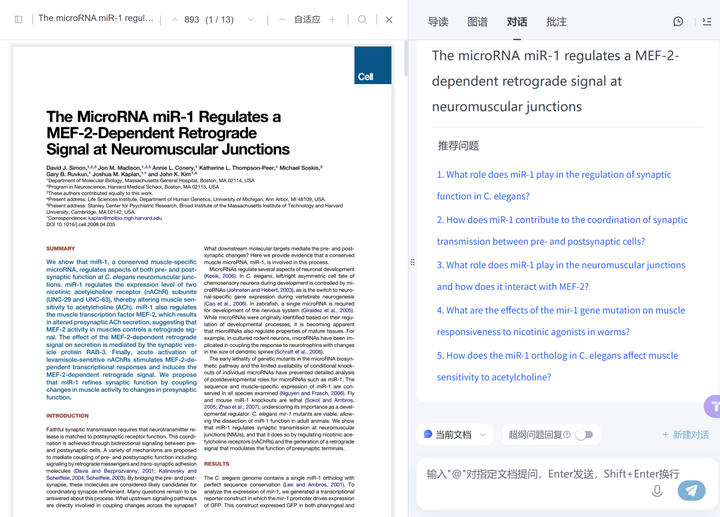
您也可以根据实际需要自主提问,系统将针对性地解读文献并提供参考来源。论文中的图片内容会直接展示在回答中。
3.4.6 精读批注
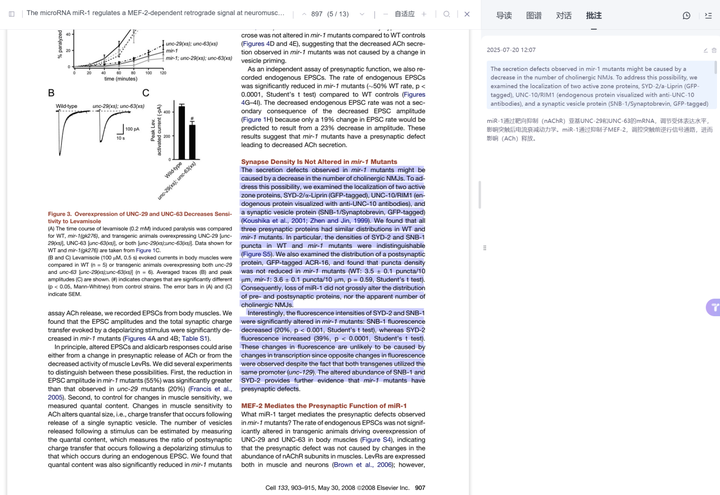
文献库提供批注功能,便于记录阅读笔记。将右侧栏切换到"批注"模块后,在左侧选中文字即可自动创建批注,然后添加您的笔记内容。
科研资讯
点击左侧导航栏「科研资讯」进入模块。科研资讯模块聚合了国内外100+家优质学术信息源,汇聚跨学科论文、新闻等前沿资讯,帮助您高效追踪研究领域的最新进展。
4.1 资讯浏览
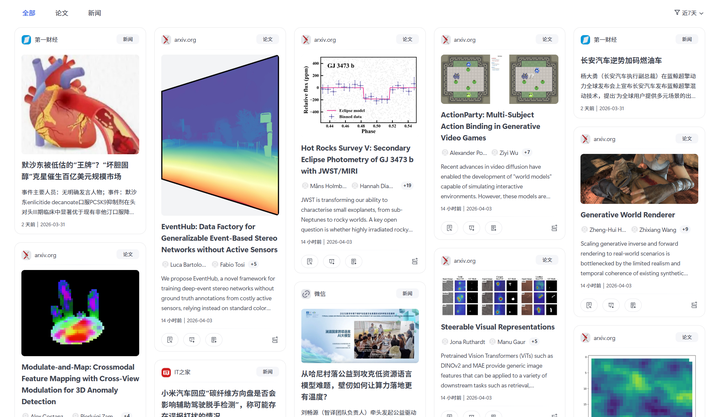
科研资讯以卡片形式在主界面中瀑布流排列,每个卡片包含内容类型(论文/新闻)、来源渠道(如"科学网""arXiv")、标题、作者、摘要、发布时间及配图等关键信息。进入模块后,系统默认展示全部类型的最新资讯,向下滚动即可加载更多内容。点击感兴趣的卡片即可跳转至原网站查看完整内容。
4.2 资讯筛选
系统提供了内容分类和时间范围两种筛选方式,帮助您快速定位所需信息:
- 内容分类筛选:页面顶部提供了内容分类标签栏,点击「全部」可展示所有类型的资讯,点击「论文」仅展示来自arXiv、期刊官网等学术论文,点击「新闻」则仅展示科技新闻和行业报道,列表会自动更新为所选类型的内容。
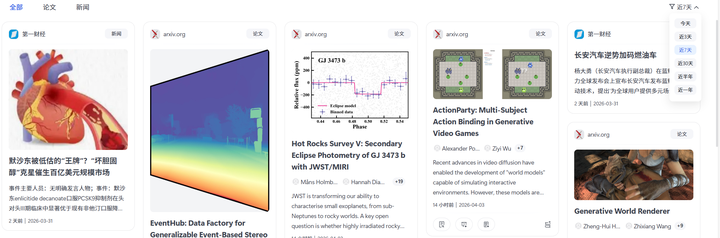
- 时间筛选:点击页面右上角的筛选按钮,可在弹出的时间选择器中选择"近7天""近30天"等预设时间段,点击确认后列表将更新为指定时间段内的资讯,帮助您定期回顾特定时段的学术进展。
4.3 功能操作区
针对于论文类型的资讯,当您在资讯卡片中发现感兴趣的论文时,可通过论文卡片底部的操作按钮快速完成阅读、生成PPT/海报、收藏到文献库等操作:
- 查看PDF:点击左下角"查看PDF"按钮,直接在浏览器中打开论文的完整版PDF,支持在线阅读和下载
- 生成学术PPT:点击左下角"生成学术PPT"按钮,系统将自动调用科学对话的"学术PPT"功能,基于论文内容生成结构化的学术汇报PPT。
- 生成学术海报:点击左下角"生成学术海报"按钮,系统将自动调用科学对话的"学术海报"功能,将论文核心内容转化为可视化的学术海报。
- 收藏到文献库:点击右下角"收藏到文献库"按钮,将论文PDF保存至个人文献库,您可在左侧导航栏的"文献库"模块中统一查看和管理已收藏的文献
ScienceHub
5.1 模型
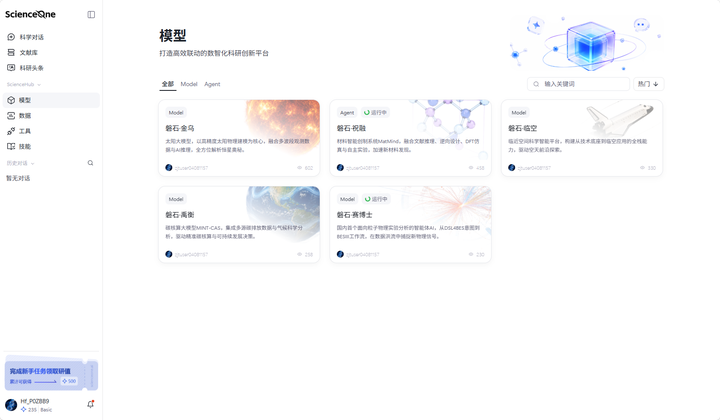
模型模块面向各领域科研工作者,整合了平台接入的垂直科研大模型与智能体资源,覆盖太阳物理、材料创制、碳核算、粒子物理、临近空间科学等多个前沿研究方向,支持用户查询模型信息与在线体验可用能力。
5.1.1 找到模型入口
- 在左侧导航栏点击「模型」进入
- 默认展示「全部」模型页面
5.1.2 浏览与查找模型
- 切换分类:顶部有「全部」「Model」「Agent」三个 Tab
「Model」:展示所有Model类型模型
「Agent」:展示所有Agent类型模型
- 搜索:在搜索框输入关键词(中英文均可),系统会模糊匹配名称和描述
- 排序:默认按「热门」排序,可点击箭头切换正序/倒序

5.1.3 查看模型详情
- 点击任意模型卡片进入详情页
- 详情页可查看:研究背景、核心能力、关键成效等,每个模型展示详情略有不同
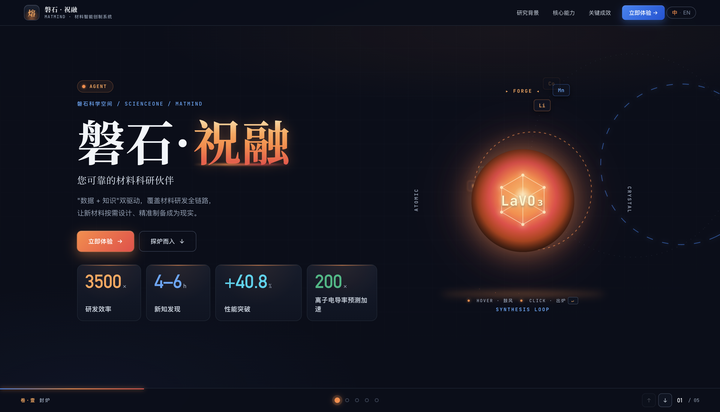
- 模型示例 - 磐石·祝融:
- 在模型列表页点击「磐石・祝融」Agent 卡片,即可进入该模型的专属详情介绍页面。
- 详情页右上角支持中 / 英文语言模式切换,适配不同阅读需求。用户可向下滚动页面逐段浏览内容,也可点击「探炉而入」按钮快速跳转,查看模型的研究背景、核心能力、关键成效等完整介绍。
- 点击页面中的「立即体验」按钮,将跳转至 MatMind 材料智能创制平台。平台内置多类细分方向的专项智能体,覆盖材料方案生成、材料设计、材料理论计算等功能场景,选择对应智能体即可开始使用。
5.2 数据
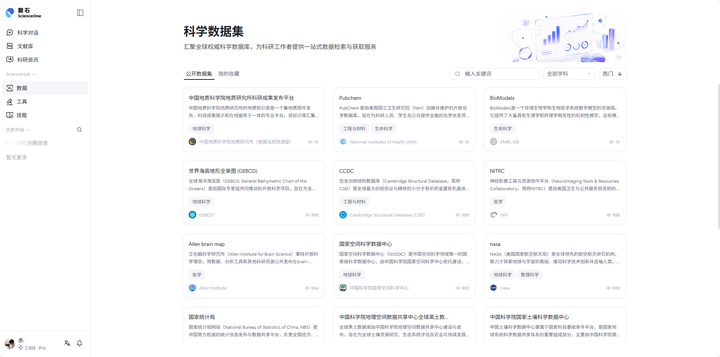
数据模块用于浏览与检索权威科研数据集,您也可以一键收藏感兴趣的数据,让科研数据从分散获取走向集中可用。
5.2.1 找到数据入口
- 在左侧导航栏点击「数据」进入
- 默认展示「公开数据集」
5.2.2 浏览与查找数据
- 切换分类:顶部有「公开数据集」「我的收藏」两个 Tab
「公开数据集」:展示平台所有数据
「我的收藏」:展示您收藏过的数据
- 搜索:在搜索框输入关键词(中英文均可),系统会模糊匹配名称和描述
- 学科筛选:顶部下拉框按学科筛选(如生命科学、医药科学、化学等),默认展示全部学科
- 排序:默认按「热门」排序,可切换到「名称」排序,并可点击箭头切换正序/倒序
5.2.3 收藏数据
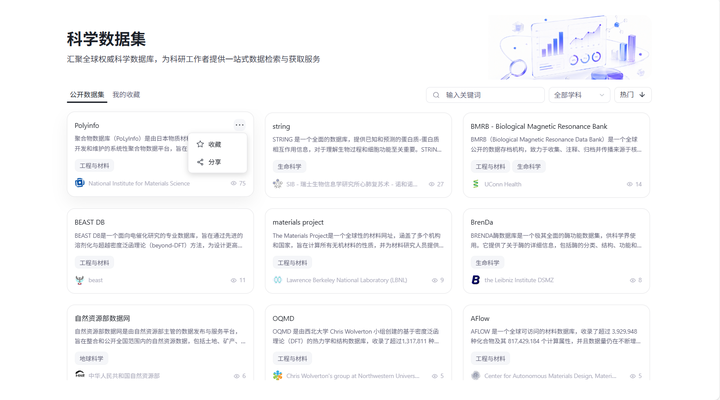
- 将鼠标悬浮在数据卡片上,卡片会出现「···」更多按钮
- 点击「···」会展开「收藏」/「已收藏」「分享」按钮
- 点击「收藏」→ 按钮变为「已收藏」,数据同步进入「我的收藏」
- 再次点击「已收藏」即可取消收藏
- 提示:取消收藏后页面不会立即刷新,需要手动刷新页面才会看到变化
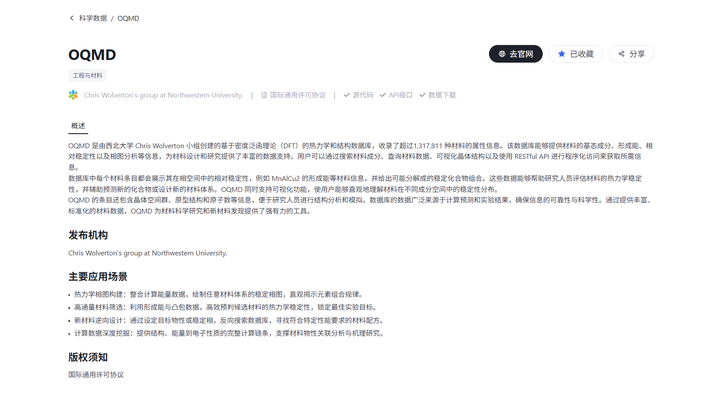
5.2.4 查看数据详情
- 点击任意数据卡片进入详情页
- 详情页可查看:数据名称、全部学科标签、数据来源、许可协议、访问方式
- 详情页提供三个操作按钮:
「去官网」:一键跳转至该数据官方来源页面
「收藏」/「已收藏」:收藏或取消收藏
「分享」:复制详情页链接,便于分享好用的数据
- 详情页下方的「概述」区域会展示该数据的详细说明文档
5.3 工具
工具模块用于接入与管理外部 MCP 工具,科学对话处可按需自动调用,助力科研用户灵活构建专属的智能工具库。
5.3.1 找到工具入口
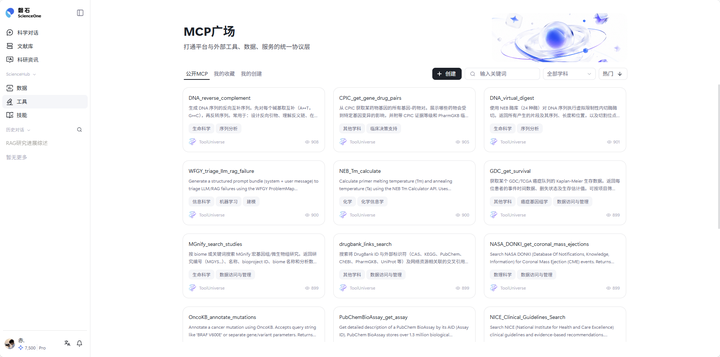
- 在左侧导航栏点击「工具」
- 默认展示「公开MCP」
5.3.2 浏览与查找工具
- 切换分类:顶部有「公开 MCP」「我的收藏」「我的创建」三个 Tab
「公开 MCP」:展示平台所有工具
「我的收藏」:展示你收藏过的工具
「我的创建」:展示你创建的私有工具
- 搜索:在搜索框输入关键词(中英文均可),系统会模糊匹配名称和描述
- 学科筛选:顶部下拉框按学科筛选(如生命科学、医药科学、化学等),默认展示全部学科
- 排序:默认按「热门」排序,可切换到「时间」「名称」排序,并可点击箭头切换正序/倒序
- 数量:标题区会显示当前可调用的 MCP 总数,随所选 Tab 实时更新。
5.3.3 收藏工具
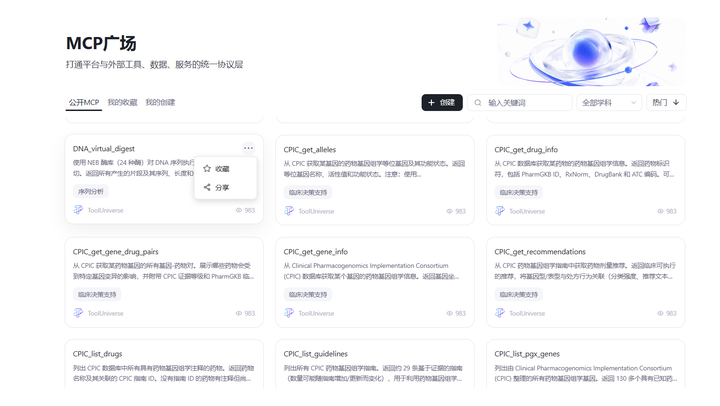
- 将鼠标悬浮在工具卡片上,卡片出现「···」按钮
- 点击「···」展开「收藏」/「已收藏」「分享」按钮
- 在「公开 MCP」下点击「收藏」→ 按钮变为「已收藏」,工具同步进入「我的收藏」
- 再次点击「已收藏」即可取消收藏
- 提示:取消收藏后页面不会立即刷新,需要手动刷新页面才会看到变化
5.3.4 查看工具详情
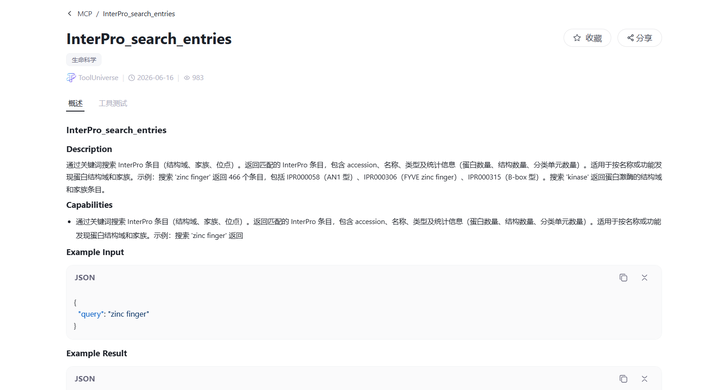
- 点击任意工具卡片进入详情页
- 详情页可查看:工具名称、学科标签、开发者、创建时间、热度
- 详情页操作:
「收藏」/「已收藏」
「分享」:复制详情页链接,直接分享好用的工具
「概述」区域会展示该工具的详细说明文档
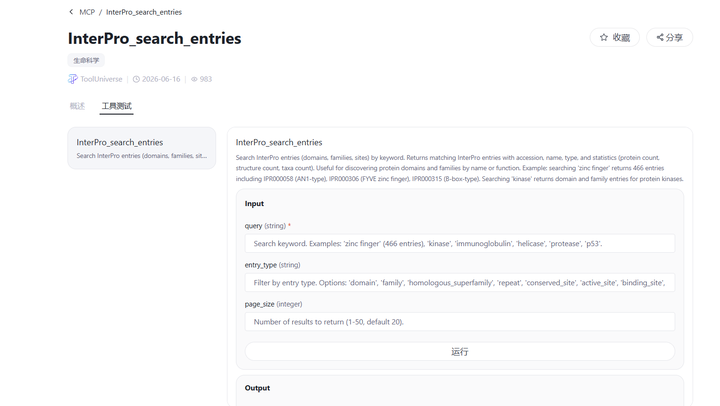
「工具测试」区域:可直接调用该工具进行测试,查看返回结果
5.3.5 创建自己的工具
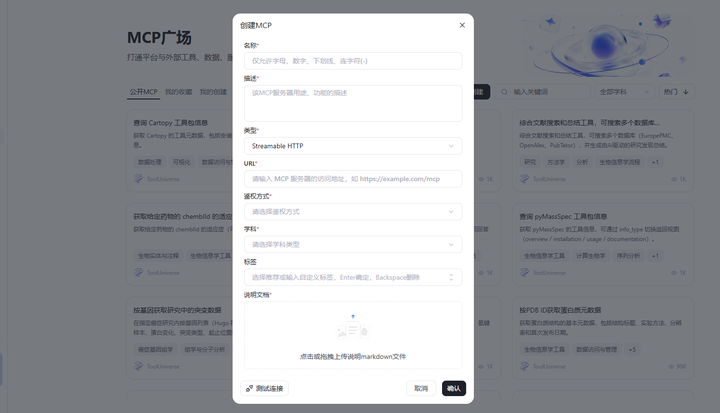
- 在工具页点击右上角「创建」按钮
- 在弹出的表单中填写:
名称(必填)
描述(必填)—— 用一段话说明这个工具的用途
类型:选择 SSE 或 Streamable HTTP
URL:填写工具的访问 URL(以 http:// 或 https:// 开头)
鉴权方式:三选一
- 无鉴权:直接连接
- Bearer 令牌:填写一个访问令牌
- 自定义请求头:填写键值对
学科:从下拉列表选择学科
标签:选择推荐或输入自定义标签,Enter确定,Backspace删除,最多支持三个
说明文档:上传一份 Markdown 格式的说明文档
- 点击「确认创建」
- 创建成功后,新工具会出现在「我的创建」列表顶部
- 也可以选择 「测试连接」,当连接通过后代表该MCP正常可用,再点击「确认创建」
5.3.6 管理我的工具
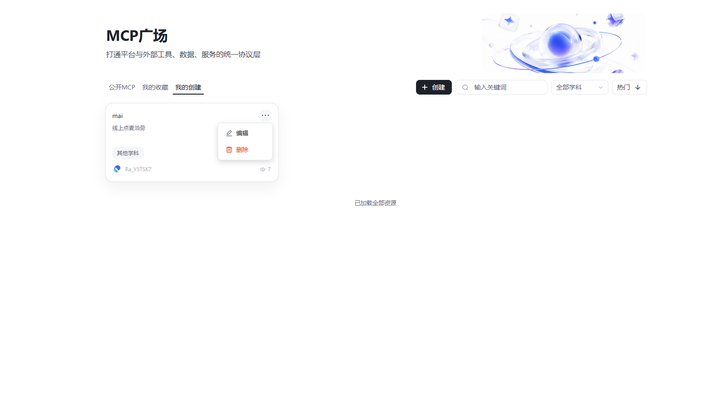
- 在「我的创建」中,可对工具进行「编辑」和「删除」操作
- 工具名称一旦创建不可修改,其余字段可编辑
- 删除需要二次确认
5.4 技能
技能模块用于管理 AI 可调用的方法与流程,内置千余项高质量 Skill,覆盖科研常见任务场景,让用户独有的研究经验沉淀为可复用的资产。
5.4.1 找到技能入口
- 在左侧导航栏点击「技能」
- 默认展示「公开Skill」
5.4.2 浏览与查找技能
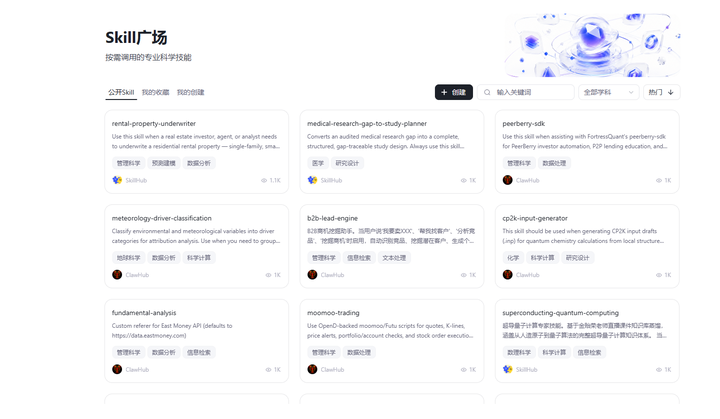
- 切换分类:顶部有「公开 Skill」「我的收藏」「我的创建」三个 Tab
- 搜索:在搜索框输入关键词(中英文均可),系统会模糊匹配名称和描述
- 学科筛选:顶部下拉框按学科筛选(如生命科学、医药科学、化学等),默认展示全部学科
- 排序:默认按「热门」排序,可切换到「时间」「名称」排序,并可点击箭头切换正序/倒序
- 数量:标题区会显示当前可调用的 SKILL 总数,随所选 Tab 实时更新。
5.4.3 收藏技能
- 将鼠标悬浮在工具卡片上,卡片出现「···」按钮
- 点击「···」展开「收藏」/「已收藏」「分享」按钮
- 在「公开 Skill」下点击「收藏」→ 按钮变为「已收藏」,工具同步进入「我的收藏」
- 再次点击「已收藏」即可取消收藏
- 提示:取消收藏后页面不会立即刷新,需要手动刷新页面才会看到变化
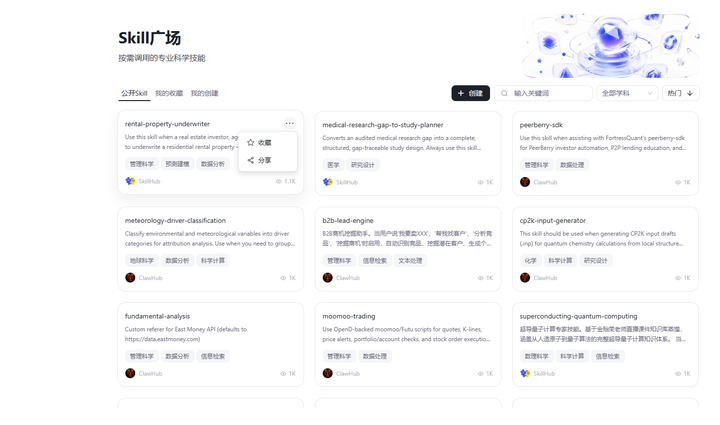
5.4.4 创建自己的技能
方式一:通过科学对话创建
- 鼠标悬浮在「创建」按钮
- 出现两个选项,点击「通过科学对话创建」
- 跳转「科学对话」,自动调用 /skill-creator 技能,依据描述创建技能
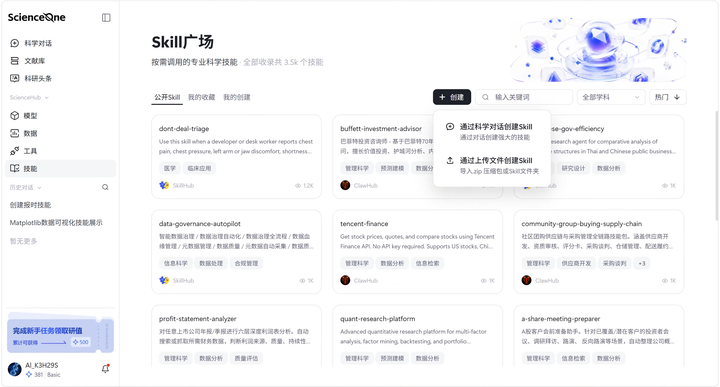
方式二:通过上传文件创建
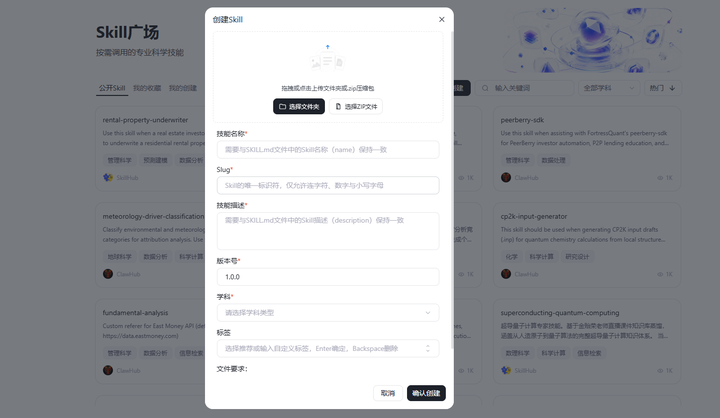
- 在技能页点击「创建」按钮
- 拖拽或点击上传技能的文件夹或 .zip 压缩包
- 系统自动识别并预填:技能名称、描述、版本号(如未填则自动补全 1.0.0)
- 补充填写唯一标识符(仅允许连字符、数字与小写字母,确定后不可修改)
- 学科:从下拉列表选择学科
- 标签:选择推荐或输入自定义标签,Enter确定,Backspace删除,最多支持三个
- 点击「确认创建」,系统自动审核(违规词、文件完整性、代码安全性等)
- 审核未通过:会显示具体原因(如涉及违规、缺少 SKILL.md 等)
5.4.5 公开发布技能
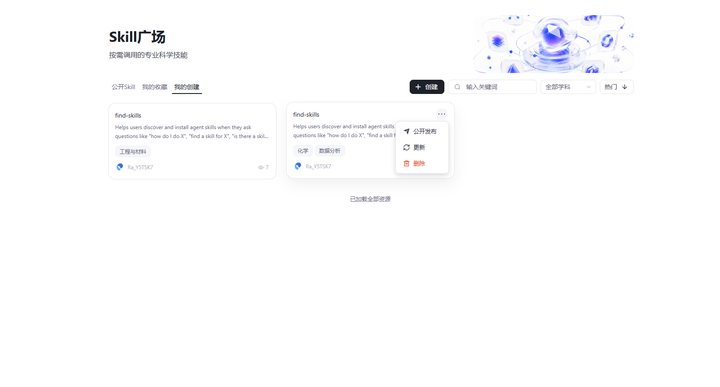
- 在「我的创建」中找到要发布的技能
- 点击「公开发布」按钮
- 系统弹出二次确认:「Skill 公开发布后无法撤回」
- 确认后,技能出现在「公开 Skill」中,并标记「已发布」
重要提示:公开发布是永久性操作,请谨慎
5.4.6 更新技能
方式一:通过科学对话更新
- 通过对话更新技能
- 对话结束后跳出「更新」按钮
- 点击即可更新当前技能
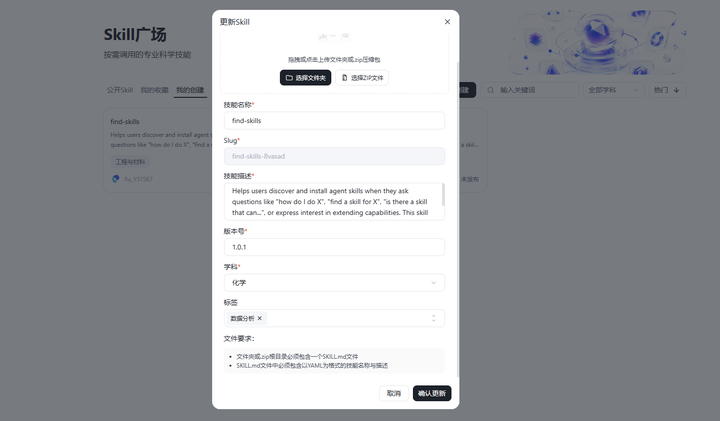
方式二:通过上传文件更新
- 在「我的创建」中点击「更新」按钮
- 重新上传技能的文件夹或 .zip 压缩包
- 可对技能名称、描述、版本号、学科、标签等内容进行二次修改,其中版本号必须在原有版本基础上增加
- 点击「确认更新」,系统重新自动审核(违规词、文件完整性、代码安全性等)
重要提示:唯一标识符(slug)一旦设定不可修改
5.4.7 删除技能
- 在「我的创建」中点击「删除」按钮 → 二次确认后删除
- 注意:
未发布的技能删除后完全消失
已发布的技能删除后,「我的创建」中会消失,但「公开 Skill」中仍保留
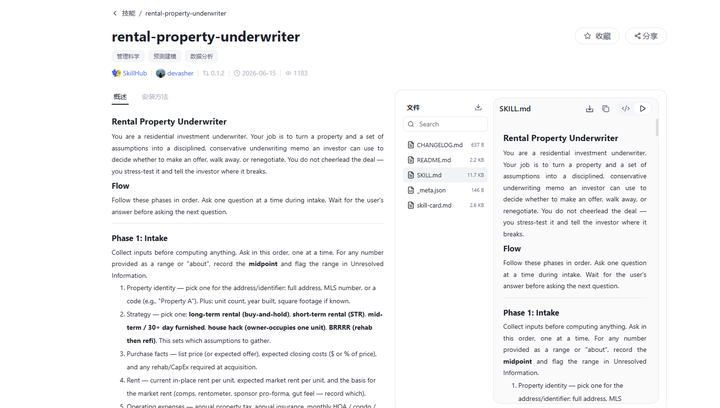
5.4.8 查看技能详情
- 点击任意技能卡片进入详情页
- 详情页可查看:技能名称、学科标签、开发者、版本号、创建时间、热度
- 详情页操作:
「收藏」/「已收藏」
「分享」:复制详情页链接,直接分享好用的工具
「概述」区域会展示该技能的详细说明文档
「安装方法」区域
5.4.9 在外部平台使用本平台技能
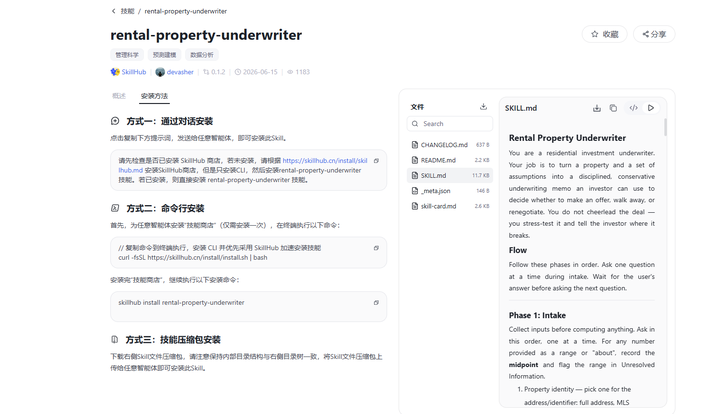
- 在技能详情页找到「安装方法」区域
- 提供三种跨端安装方式:
- 对话安装:复制提示词发送给任意智能体使用
- 命令行安装:适用于已支持Skillhub CLI 的智能体
- 压缩包安装:下载技能压缩包后上传给任意智能体
- 详情页右侧「Skill 文件区」提供文件树目录,支持搜索、下载压缩包、复制单个文件内容
5.4.10 使用技能
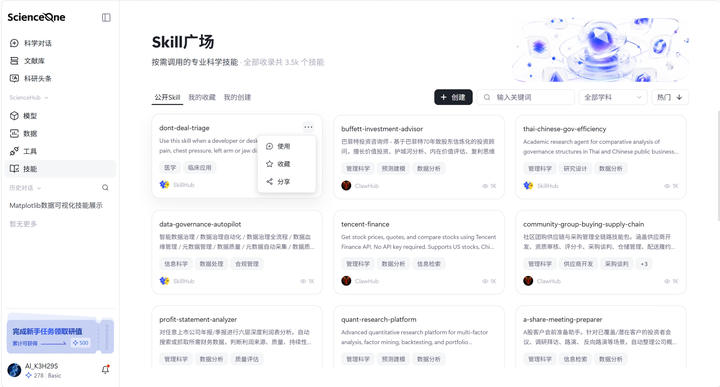
- 将鼠标悬浮在工具卡片上,卡片出现「···」按钮
- 点击「···」展开「使用」「收藏」/「已收藏」「分享」按钮
- 在「公开 Skill」下点击「使用」→ 自动跳转「科学对话」在对话流中展示技能使用方式
历史记录
历史记录模块记录您在科学对话中的所有研究任务,帮助高效管理和跟踪研究进度。点击任意任务可进入详细界面,查看完整信息和最新进展。支持实时监控任务进行状态,并可点击查看详情。
左侧直接展示近期历史对话记录,支持历史对话重命名、收藏和删除。
点击“搜索对话”,将会展示您所有的历史对话记录。
6.1 对话
清晰显示所有已创建的研究任务,包括任务名称、创建时间、最后更新时间及简要描述。可以筛选不同模式的历史对话任务。
历史记录显示对话当前任务状态(进行中、手动中止、执行失败),可查看不同类型的历史任务。点击任一历史记录,即可进入该对话,查看该对话当前进度和相关数据。
6.2 收藏
展示已标记为收藏的研究任务,通过特殊标识便于您快速识别和访问。
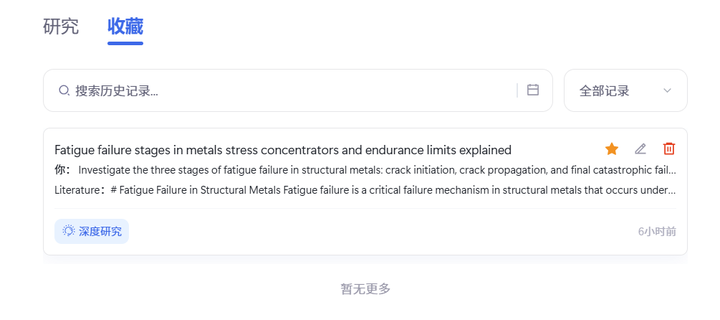
您可随时将任务添加到收藏列表或删除,方便您灵活管理收藏记录。
您可以按收藏时间、任务优先级或完成进度进行排序,并提供关键词搜索功能以快速定位收藏任务。
用户设置
在 ScienceOne 平台的主界面左下角区域,支持查看用户信息以及查看系统通知。点击左下角的用户名,弹出用户设置菜单,可以查看研值余额和套餐,并可进行权益兑换、查看用户中心、查看使用说明、进行意见反馈、联系我们、变更系统语言、系统主题设置、退出登录操作,点击更多信息则可以进一步了解平台信息、查看更新日志和规则协议。
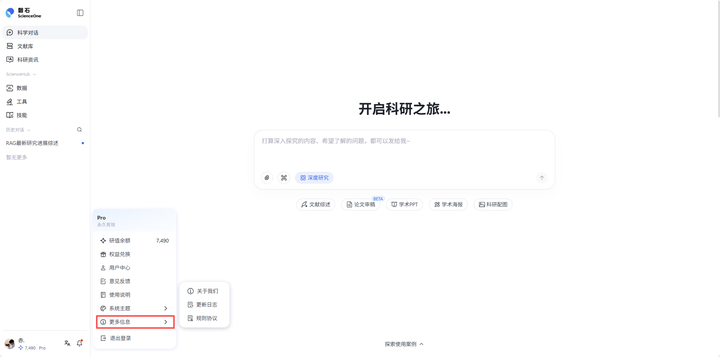
7.1 研值余额
点击用户名后,在弹出的菜单中会显示您当前的研值套餐和研值余额。点击研值余额将进入“研值中心”,您可在研值中心查看研值总览和订阅充值的相关信息。
7.2 用户中心
点击“用户中心”选项,将进入个人中心页面。
“个人中心”包括“账户信息”和“个人主页”两个板块。
7.2.1 账户信息
您可以在此查看和管理您的基础信息。
信息展示:页面会清晰展示您的个人资料,包括头像、用户名、工作单位、账户ID、账号、绑定的手机号、电子邮箱以及注册时间。
信息编辑:对于用户名字段,您可以点击右侧的“编辑”按钮进行修改;对于手机号、电子邮箱字段。您可以点击右侧的“绑定”按钮进行对应联系方式的绑定;对于账号密码字段,则可以点击右侧的“重置”按钮以更新您的账号密码。
账户注销:页面底部提供“注销账户”按钮,用于永久删除您的账户。
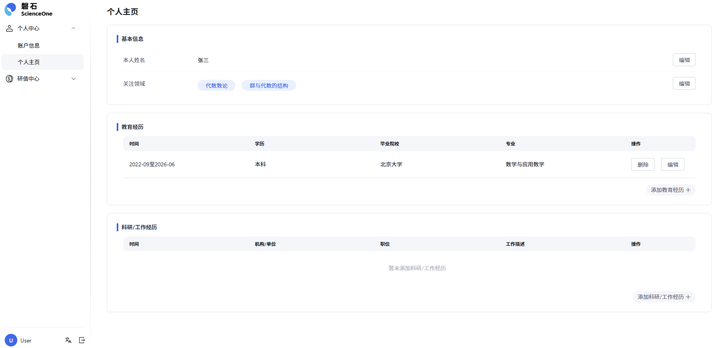
7.2.2 个人主页
您可以在此打造您的专属学术名片。
信息展示:页面会展示您的基本信息、教育经历和科研/工作经历。
信息编辑:在基本信息板块,您可以点击“编辑”按钮修改本人姓名和增加减少关注领域;在教育经历模块,您可以点击右下角的“添加教育经历”以添加教育经历;在科研/工作经历模块,您可以点击右下角的“添加科研/工作经历”以添加科研/工作经历,并支持每段经历的“删除”和“编辑”。
7.3 意见反馈
选择“意见反馈”选项,即可反馈关于系统的意见和建议,支持站内在线反馈。

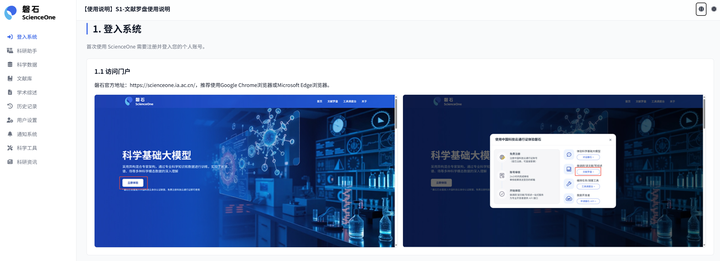
7.4 使用说明
选择“使用说明”选项,即可查看系统的详细使用手册,了解系统功能及使用方式,支持切换中英文双语查看。
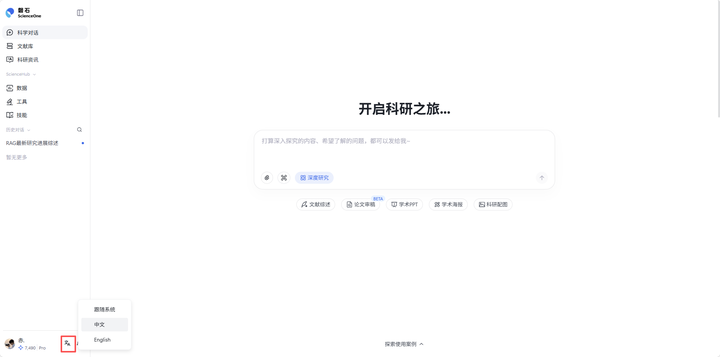
7.5 系统语言设置
ScienceOne支持切换中英双语系统。在用户设置菜单中,点击当前的语言选项(如“中文”),在列表中选择您希望使用的语言,界面将自动切换到该语言版本。
7.6 系统主题设置
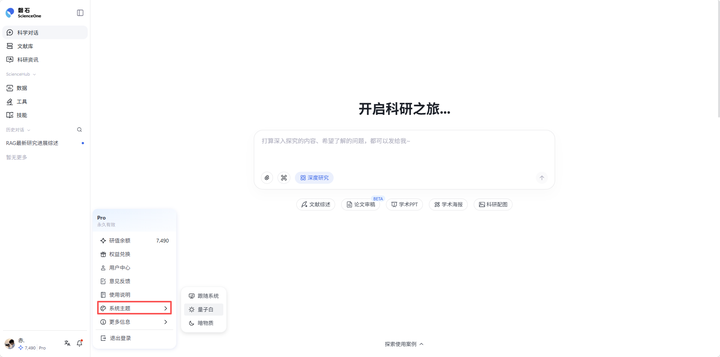
点击用户名后,在弹出的菜单中点击“系统主题”,进一步选择“量子白”、“暗物质”、“跟随系统”等主题选项,即可切换系统的整体视觉风格。您可以根据个人偏好选择不同的主题,以获得更舒适的使用体验。
7.7 更多信息
7.7.1 关于我们
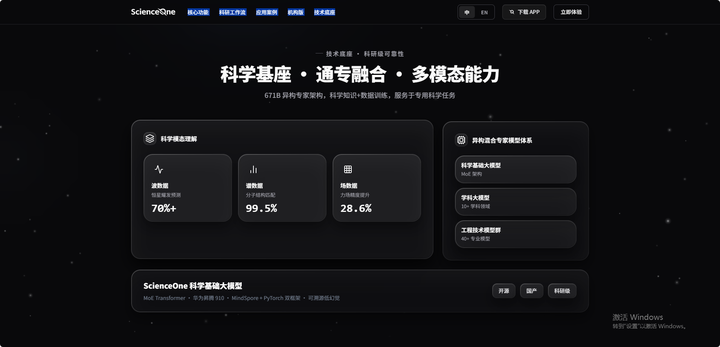
选择“关于我们”选项,即可查看系统简介,包括核心功能、科研工作流、应用案例、机构版、技术底座。
7.7.2 更新日志
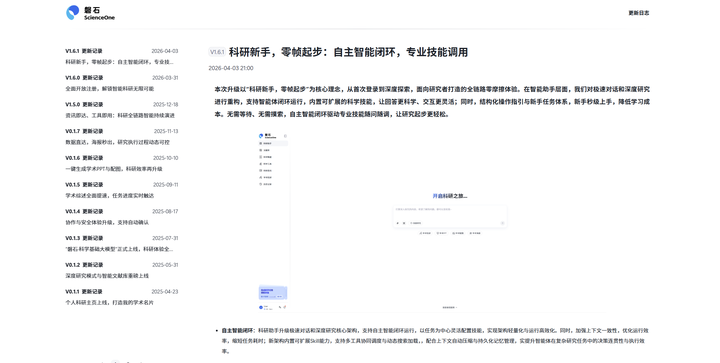
选择“更新日志”选项,即可查看系统版本更新日志,支持查看各版本更新的主要内容。
7.7.3 规则协议
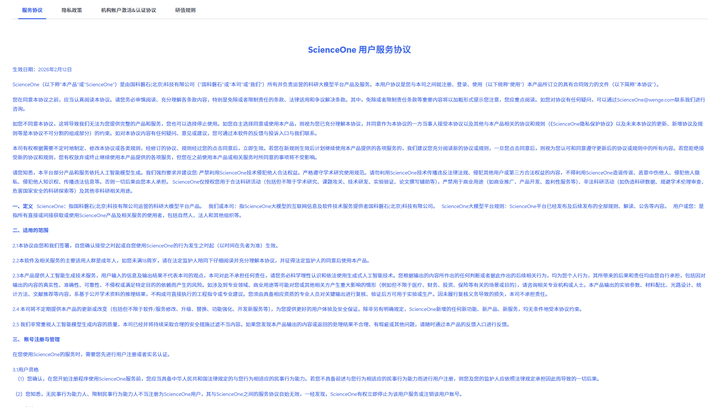
选择“规则协议”选项,即可查看各项规则协议,包括ScienceOne的服务协议、隐私政策、机构账号激活&认证协议和研值规则。
7.8 退出登录
点击菜单底部的“退出登录”按钮,您将安全退出当前账号,系统将返回至登录页面。为保障账户安全,建议您在完成操作后退出登录。
通知系统
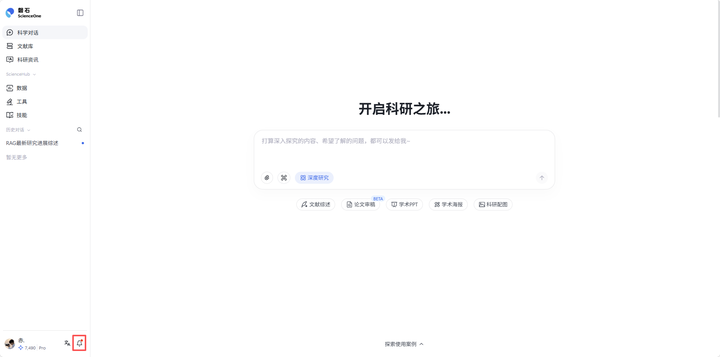
在系统的主界面,点击左下方铃铛按钮,即可弹出通知中心菜单。在此菜单中,您可以查看和处理消息、跟进任务提醒及接收系统通知。
8.1 通知中心
通知中心默认显示“全部”消息。您可以点击“未读”标签,快速筛选出所有尚未查看的通知。若无未读消息,该视图下会提示“暂无未读消息”。
每条未读消息的右侧会有一个红点标识。当您点击该消息并完成相应交互(如跳转页面或查看弹窗)后,该红点将自动消失,表示消息已读。
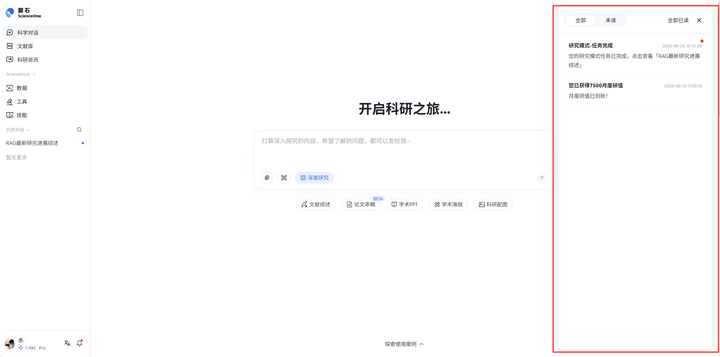
在通知中心顶部,您可以找到“全部已读”按钮。点击后,所有未读消息将立即被标记为已读状态,所有红点(包括入口图标上的红点)都将消失。
8.2 即时弹窗
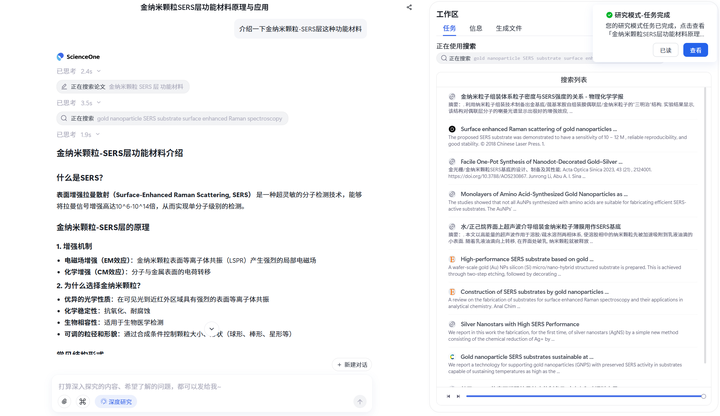
为确保您能及时了解关键任务的最新进展,系统会在界面右上角通过即时弹窗发送提醒。这些提醒旨在主动告知您任务的成功、失败或需要您确认的状态,并引导您进行后续操作。
弹窗构成与交互
每个弹窗均由状态图标、消息内容及右下角的“查看”和“已读”两个按钮组成。
- 状态图标:分为成功、失败和确认三类,帮您快速识别消息性质。
- 查看按钮:点击后将直接跳转到该消息关联的任务界面。
- 已读按钮:点击后,该条消息将被标记为已读,弹窗关闭,消息中心的红点提醒也会相应更新。
弹窗类型与持续时间
根据消息的重要性,弹窗分为两种类型:
- 通知类消息 (成功/失败):此类弹窗用于结果告知,会在屏幕上停留数秒后自动消失,以尽量减少对您当前操作的打扰。
- 确认类消息:此类弹窗涉及需要您决策的关键节点,会持续显示在界面上,直到您主动点击按钮进行处理。
研值体系
9.1 研值中心
在 ScienceOne 平台的主界面左下角区域点击用户名,在弹出的菜单中点击研值余额将进入“研值中心”。
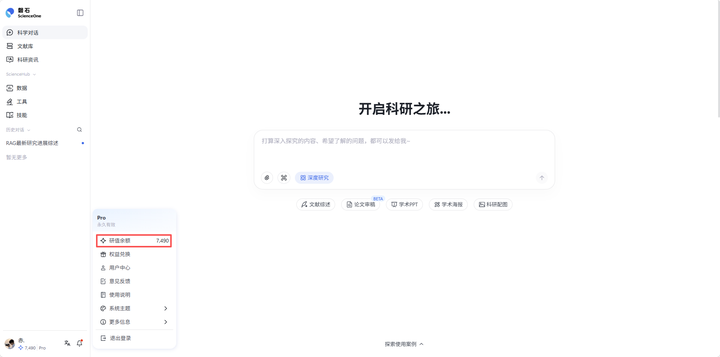
“研值中心”包括“研值总览”、“活动中心”与“订阅充值”模块。
“研值”作为体验ScienceOne网站的虚拟货币系统,仅可在本站范围内使用,根据有效时长的不同,分为三种不同的类型:
- 每日研值:当日获取当日有效,至获取当日的24:00失效。
- 限时研值:30天有效期,从获取当日算起,30天后的24:00失效。
- 永久研值:账号正常使用期间内永久有效。
9.2 研值总览
“研值总览”可以获取您在ScienceOne网站中总体的研值相关信息,包括您的会员信息、当前可用研值与历史研值明细。
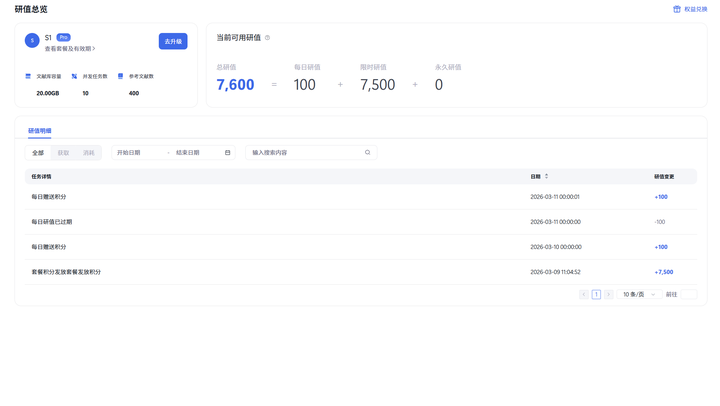
9.2.1 个人信息
个人信息展示了您的套餐信息,您可以在此了解当前会员等级下的所有权益,包括“文献库容量”,“并发任务数”,“参考文献数”等。
9.2.2 当前可用研值
这里展示您当前所有研值的数额情况,包括每日研值,限时研值,永久研值。
9.2.3 研值明细
研值明细展示了您历史所有涉及研值获取与消耗的明细记录,您可以选择查看研值的消耗或获取,同时也支持搜索查看固定时间段内研值的明细。
Login System
New users of ScienceOne need to register and log in to their personal account.
1.1 Access
Official ScienceOne website: https://www.scienceone.cn.
Google Chrome or Microsoft Edge browser is recommended.
1.2 Register
When accessing ScienceOne for the first time, you need to register an account. The system provides email and WeChat registration options for individual users. Enter your email address in the input field and click Send to receive a verification code. Enter the correct verification code to complete registration and automatically create your account. Alternatively, click the WeChat icon at the bottom of the page to register by scanning a QR code.
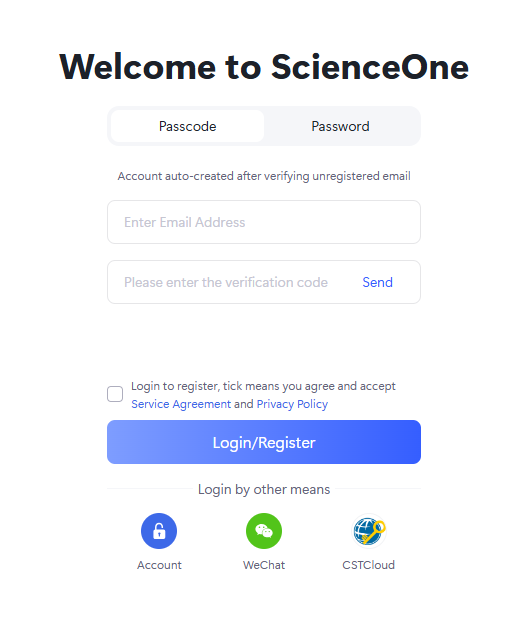
1.3 Login
Two main login methods are supported:
- Passcode: Enter your email address and click Send to receive a verification code. Unregistered email addresses will have an account auto-created upon verification.
- Password: Enter your email address and account password to log in.
Additionally, you can log in via Account, WeChat, or CSTCloud using the options at the bottom of the page.
Research
2.1 Conversation Modes
The Research provides multiple usage modes for scenarios including literature research, subject questions answering, research report writing, visualization report generation, and literature reviews.
Turbo Mode: Faster, suitable for daily work and question answering scenarios, efficiently resolving research queries.
Deep Research: More comprehensive, suitable for research, reports, mining research ideas scenarios, integrating massive information to fully support research decision-making.
Deep Survey : More transparent, specialized for ultra-long literature review scenarios, deeply analyzing tens of thousands of papers, comprehensively organizing research contexts.
Manuscript Evaluation:Enhanced, Ideal for pre-submission paper self-check and auxiliary review. It pinpoints areas for improvement and helps you polish your manuscript to perfection.
Academic PPT: More professional, suitable for proposal reports, academic conference presentations, research result display scenarios, upload papers to generate with traceable images and charts.
Scientific Illustration: More precise, suitable for paper chart drawing, report illustration design, academic presentation visualization material production scenarios, precisely matching research content.
Academic Poster: More intuitive, suitable for academic exchanges and result display scenarios, upload papers to generate with visualized research highlights.
MatScientist: Focuses on material characterization analysis, structural and property research, and assists phase identification, performance interpretation and material property trend prediction.
MolChemist: Covers molecular structure, physicochemical properties, toxicology and metabolomics data mining, supporting drug screening, compound evaluation and molecular knowledge discovery.
MolModeler: Adapts to thermodynamic calculation, molecular/protein structure simulation and parameter fitting, and delivers intelligent interpretation for stability screening and computational outputs.
BioPlanner: Tailored for sequencing, gene editing, cell and synthetic biology experiments, providing one-stop services including experimental protocol design, omics data processing and result analysis.
2.1.2 Deep Research
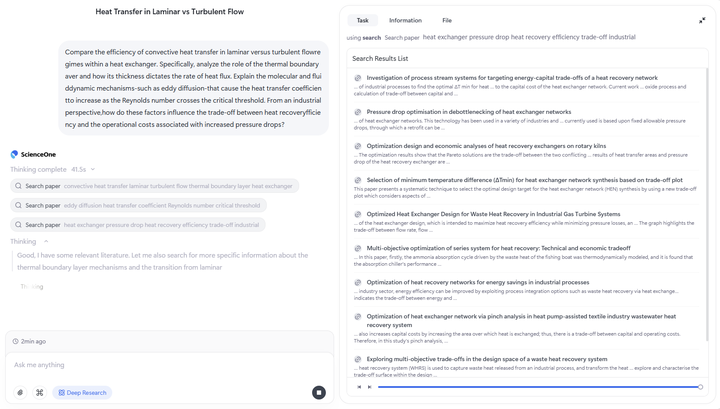
Deep Research is currently the default conversation.In this mode, a single-agent closed-loop (AgentLoop) architecture is adopted. The agent thinks about your question and outputs an answer.
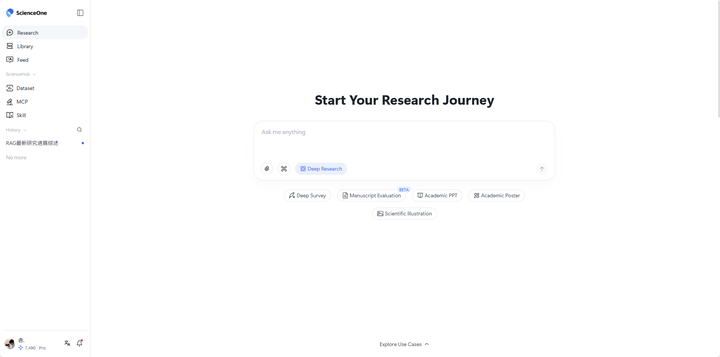
The system consists of two parts: Process (left) and Workspace (right). The left Process Area displays the current execution process, including thinking process, execution details, and final generated results. The right Workspace contains three sections: "Tasks" shows output results of agent execution steps; "Information" summarizes information collected through skills, web sources, and literature databases; "Files" displays all files generated for the current task.
2.1.3 Deep Survey
Select the "Deep Survey" button below the homepage dialog box to use Literature Review Mode.

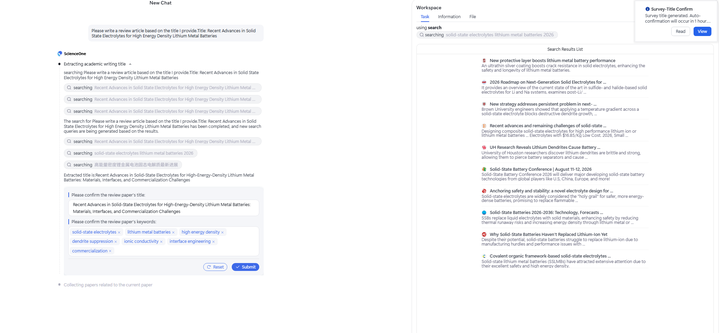
In this mode, you can input your research questions to obtain professional reviews of tens of thousands of words. Before starting the task, you can select literature libraries, online sources, and target language.
After the task starts, the agent extracts detailed information such as titles and keywords of the review, generates a modifiable review outline, and waits for your confirmation before continuing execution.
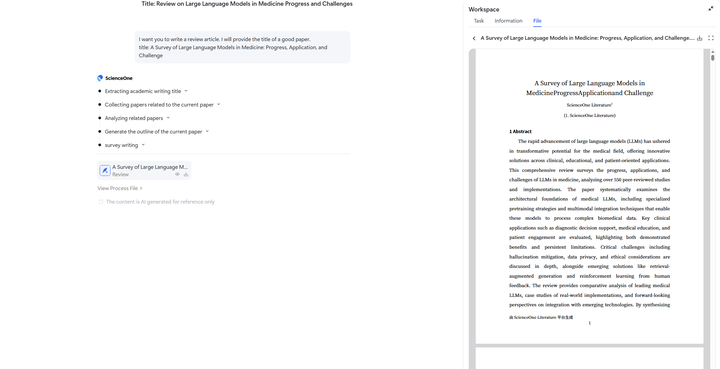
After task completion, the system displays the complete the literature review report including abstract, main text, and references. Click "Download" to download the full report in PDF, Word, or MD format.
2.1.4 Manuscript Evaluation
Select "Manuscript Evaluation" below the dialog box on the homepage to use the Manuscript Evaluation Agent.
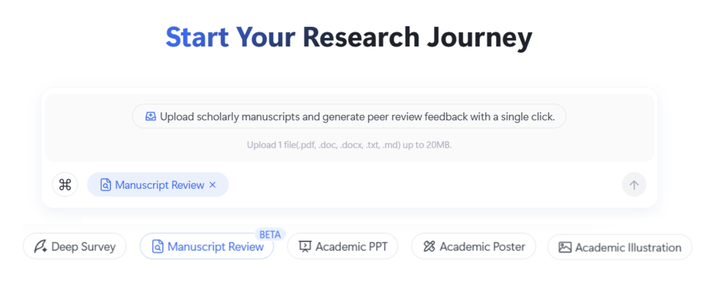
In the Manuscript Evaluation Agent, you can directly upload relevant academic documents (.pdf/.doc/.docx/.md/.txt format supported, limited to one paper with a file size of no more than 20MB). Before starting the task, you can select the output language, which supports both Chinese and English formats.
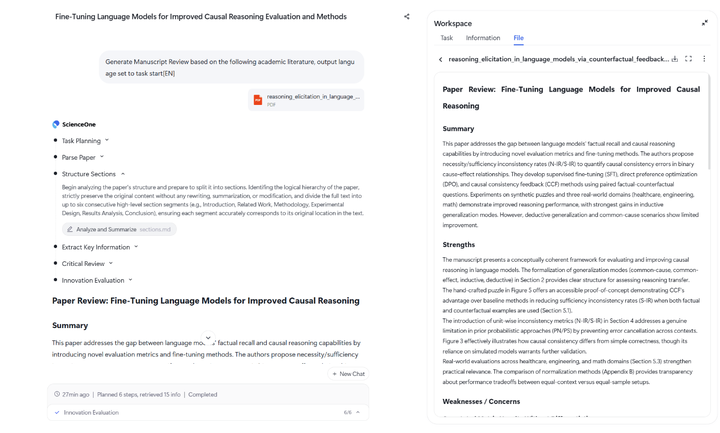
After the task starts, the agent will conduct a review of the paper from an objective academic perspective across the following dimensions: reading and analyzing the paper's content, organizing its section structure, extracting core viewpoints and key information, critically reviewing the paper's logic and expression, and evaluating its innovation and academic contribution, among others.
After the agent task is completed, results are displayed in markdown format. You can freely choose to download them in PDF or DOC format to obtain the final manuscript evaluation suggestions.
2.1.5 Academic PPT
At the bottom of the homepage dialog box, select the “Academic PPT” button to enter the academic PPT generation mode. It supports uploading 1 academic document in PDF, DOC, or DOCX format with a file size within 20MB by clicking the attachment. Before uploading, you can choose the output language (Chinese/English, default is English) and the theme color, and the Agent will create the academic PPT based on your selected configuration.
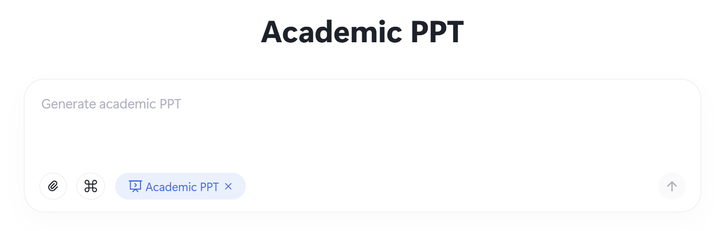
The Academic PPT Agent will invoke the ppt-generator skill, which is divided into four phases. First, it will perform input document confirmation and source document parsing. The Agent will read the source file and parse the paper content and chart information, and during the parsing process, detailed processing logs will be displayed in the workspace. Second, based on the configuration you selected, the Agent will generate recommended parameters for the academic PPT product for you to confirm or modify. In the second phase, a presentation outline will be generated. The Agent will generate and display a complete PPT outline structure, and after you confirm or modify the outline, you will proceed to the next phase.In the third stage, PPT content is generated page by page, and the right workspace will display the progress of PPT generation for each page. In the final stage, PPT rendering is completed and a downloadable PPT document is provided.
Throughout the entire generation process, the right-side workspace will display two main content modules in real time. The Task Module shows detailed processing logs, including records of the entire process of file reading, content parsing, outline generation, and PPT production. The File Module displays files generated during the task in folders, including charts extracted after academic literature parsing, txt and json files of processing logs, markdown result files from each generation stage, PPT files generated page by page, etc.
2.1.6 Scientific Illustration
At the bottom of the homepage dialog box, select the “Scientific Illustration” button to enter the scientific illustration generation mode. The underlying model of the scientific illustration intelligent agent uses the MultiModal Machine Learning inference model S1-Omni-Image, following the "Think before Generate" paradigm and supporting two core functions: image generation and image editing. Trained on massive scientific illustrations covering six major disciplines (mathematics, physics, chemistry, astronomy, geography, and biology).The model is compatible with common types of scientific diagrams including flowcharts, architecture diagrams, and principle diagrams. It visualizes the full drawing reasoning process in real time during generation, enabling one-stop creation and refined editing of scientific illustrations.

You can describe the content of the required scientific research illustration in natural language. After submitting the illustration request, the system will automatically execute two key steps to complete the illustration generation. First, it will understand the scientific illustration requirements and conduct a relevance assessment. The Agent will analyze your description, determine whether it meets the requirements for scientific illustrations, and evaluate the security and compliance of the content. After passing the assessment, the Agent will call the S1-Omni-Image model to draw the scientific illustration, generate professional academic-style images based on your requirements, and add an AI-generated watermark to identify the source. After the illustration generation is completed, the Agent will display the results of the scientific research illustration generation.Supports using the like/dislike feature to provide feedback on the generated results, helping the Agent continuously optimize.
Additionally, the Agent supports multi-round conversations to refine the illustration effect. You can also continue to provide modification suggestions or new illustration requirements in the current conversation until your academic needs are met.
2.1.7 Academic Poster
At the bottom of the homepage dialog box, select the “Academic Poster” button to enter the academic poster generation mode. It supports uploading 1 academic document in PDF, DOC, or DOCX format with a file size within 20MB by clicking the attachment. Before uploading, you can select the output language (Chinese/English, default is English), size, and theme color, and the Agent will create the academic poster based on your selected configuration.
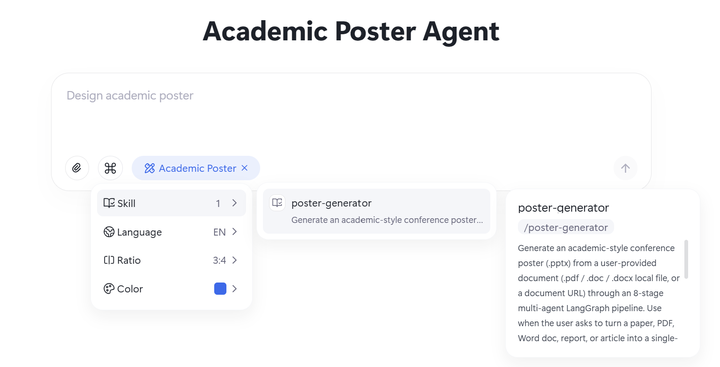
The academic poster agent will invoke the poster-generator skill to gradually complete the academic poster generation task. Through eight steps of parsing the document -> confirming parameters -> content curation -> color design -> title design -> layout optimization -> font design -> rendering the poster -> final verification, a downloadable academic poster will be generated.
Throughout the entire generation process, the right-side workspace will display two main content modules in real time. The Task Module shows detailed processing logs, including records of the entire process of file reading, content parsing, and poster creation. The File Module displays files generated during the task in folders, including charts extracted after academic literature parsing, txt and json files of processing logs, markdown result files of the eight steps, the final academic poster PPT file, etc.
2.1.8 MatScientist
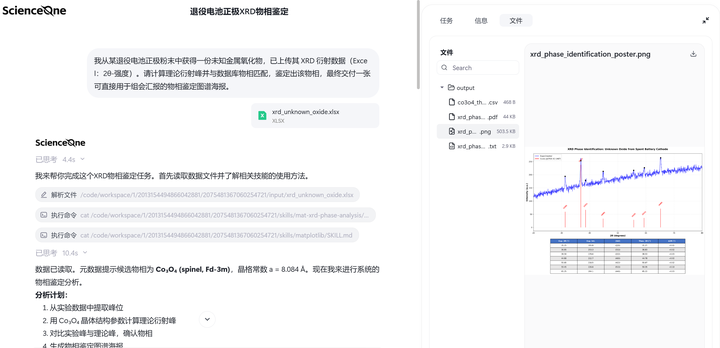
The MatScientist is designed for the interpretation of characterization data such as XRD, NMR, and Raman, as well as phase identification. It supports analysis of material structure, electrochemical performance, stability, and structure–activity relationships, assisting in the understanding and prediction of material properties.
Select the "MatScientist" button below the dialog box on the homepage to enter the MatScientist. You can upload up to 10 files of various formats, each within 20 MB, by clicking the attachment icon. Before starting a task, you may select the required Skills and MCPs, and enable or disable the knowledge base and information sources as needed.
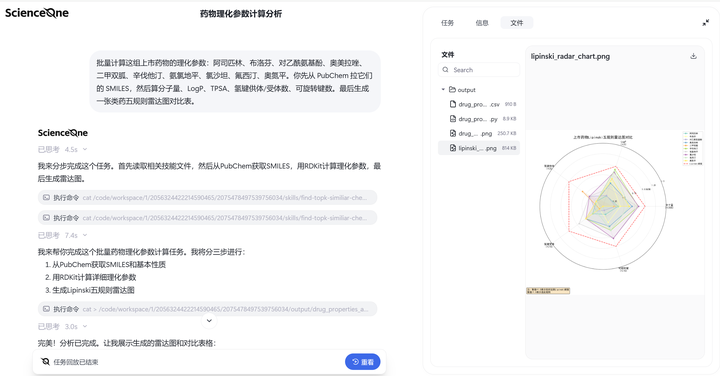
2.1.9 MolChemist
The MolChemist is designed for the retrieval, analysis, and knowledge discovery of molecular structures, physicochemical properties, biological activities, ADMET/toxicity predictions, and metabolomics data, assisting in drug research and compound evaluation.
Select the "MolChemist" button below the dialog box on the homepage to enter the MolChemist. You can upload up to 10 files of various formats, each within 20 MB, by clicking the attachment icon. Before starting a task, you may select the required Skills and MCPs, and enable or disable the knowledge base and information sources as needed.
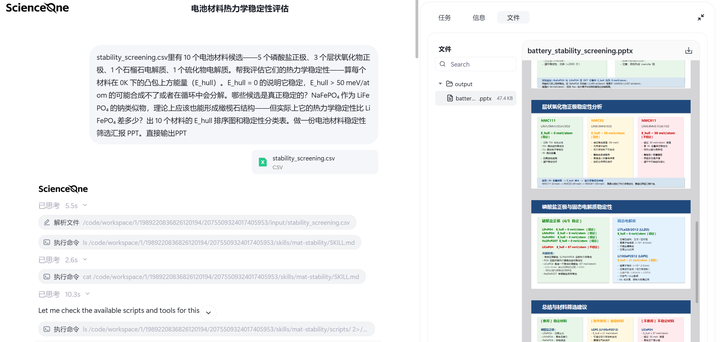
2.1.10 MolModeler
The MolModeler supports protein assembly interface analysis, material thermodynamic stability screening, equation-of-state fitting, and primer/structure parameter calculations, assisting in thermodynamic property analysis and the interpretation of computational results.
Select the "MolModeler" button below the dialog box on the homepage to enter the MolModeler. You can upload up to 10 files of various formats, each within 20 MB, by clicking the attachment icon. Before starting a task, you may select the required Skills and MCPs, and enable or disable the knowledge base and information sources as needed.
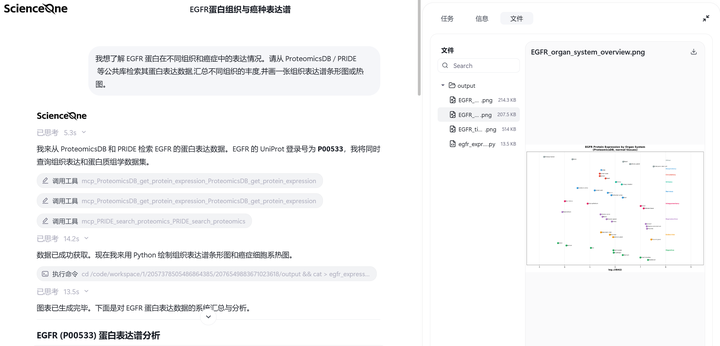
2.1.11 BioPlanner
The BioPlanner is designed for tasks such as gene editing, omics sequencing, genetic analysis, flow cytometry, synthetic biology, and animal experiments, covering scenarios from molecular biology to applied life sciences. It supports experimental design, data processing, and result interpretation.
Select the "BioPlanner" button below the dialog box on the homepage to enter the BioPlanner. You can upload up to 10 files of various formats, each within 20 MB, by clicking the attachment icon. Before starting a task, you may select the required Skills and MCPs, and enable or disable the knowledge base and information sources as needed.
2.2 Attachments and Settings
2.2.1 Upload Attachments
Supports uploading mainstream document formats: pdf/pptx/xls/xlsx/csv/docx/md/txt/epub/ofd/wps
More file formats are continuously being expanded. Supports uploading up to 10 files at once, each not exceeding 20MB.
2.2.2 Set Skill, MCP, Library, and Online Sources
Click Settings to select the agent's skills, MCP servers, information sources, and output configuration. Information sources include Library and Online sources. Output configuration options vary by mode — for example, in Literature Review mode, you can set the target language; in Academic Poster mode, you can set both the target language and theme color.
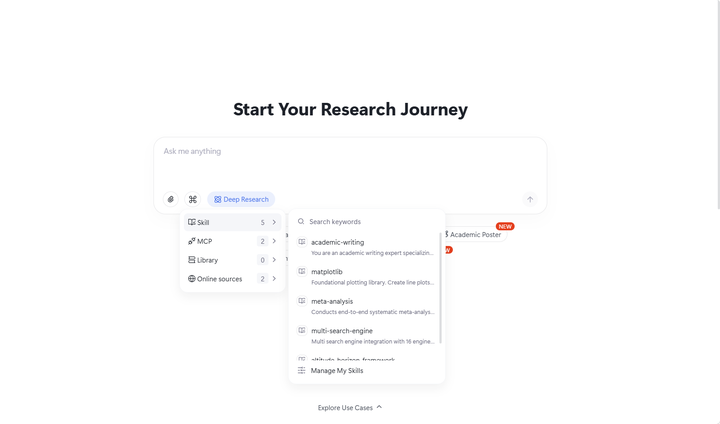
- Skills:
Displays the skills available for invocation. You can choose which skills to call based on your specific research scenario.
- Click the Skill button in the input bar to open the skill list. You can click a skill to load it directly into the input box for invocation.
- Click Manage My Skills to open a panel where you can select up to 10 skills for the agent to invoke automatically as needed.
- Skills with the toggle enabled will be triggered automatically on demand.
- Skills with the toggle disabled can still be loaded into the input box manually, forcing a 100% explicit invocation in the format /[skill-slug].
- If you try to enable more than 10 skills, a message will appear: "The maximum number of auto-triggered Skills has been reached."
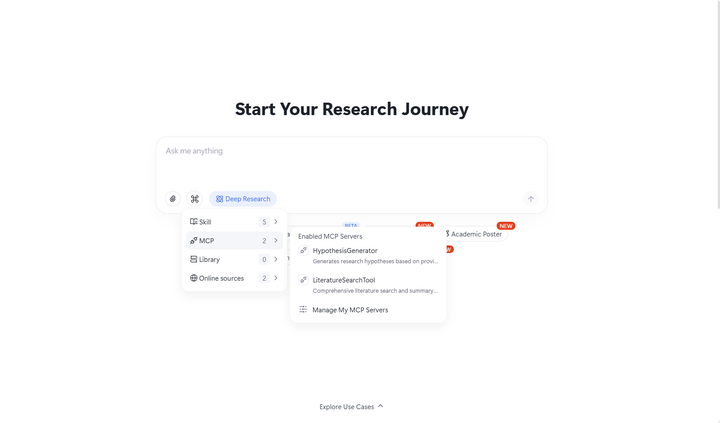
- MCP
Displays your enabled MCP servers. You can configure external MCP servers independently, giving the research assistant continuously expandable tool-dispatching capabilities.
- Click the MCP button in the input bar to view the list of Enabled MCP Servers.
- Click Manage My MCP Servers to open a panel where you can select up to 10 MCP servers for the agent to invoke automatically on demand.
- The first time you enable an MCP server, you will need to enter authentication credentials. The platform securely encrypts and stores your credentials, so you will not need to re-enter them for the same MCP server in the future.
- While entering authentication credentials, you can click Test Connection to verify that the MCP server is connected correctly.
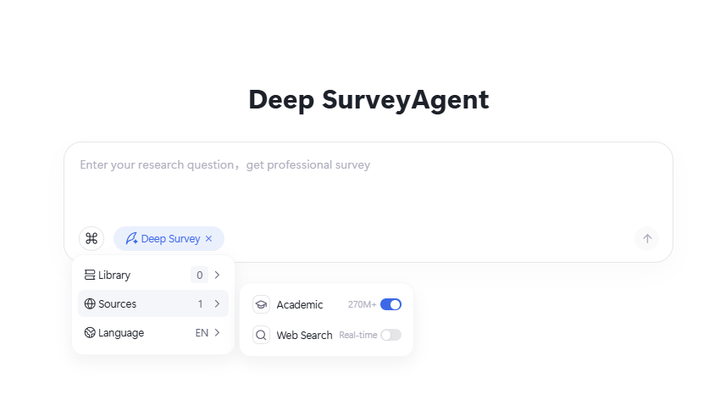
- Library: Library databases are created by you according to research needs for storing selected papers. You can select which literature databases\libraries the agent is allowed to access.
- Online Sources: Online sources include academic and Web search. After enabling Academic, the agent connects to academic databases including 170 million scientific papers from CAS Literature Information Center, 2.4 million arXiv preprints, and global paper resources from Google Scholar;After enabling Web search, the agent actively searches the internet for relevant materials.
2.3 Conversation
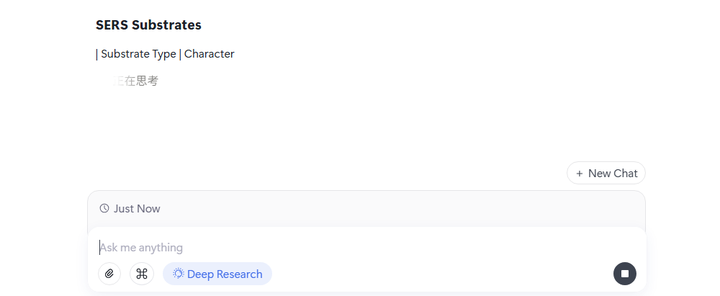
2.3.1 Conversation Termination
During any conversation process, click the terminate button to immediately stop the ongoing conversation.
2.3.2 New Conversation
After the current conversation ends, click "New Chat" to start a new round of conversation. The new conversation is not affected by other conversation contexts.
2.4 Progress Viewing
In Research Mode, tasks are divided into multiple steps. Click expand to view all task progress. Also, click the expand button on the right side of each step in the process to view detailed process of each step. Click specific execution actions to view results of that action in the workspace.
2.5 Workspace
2.5.1 Progress Navigation
Complete task progress is displayed as a progress bar. Users can click "Left/Right" switch buttons to navigate between steps, or drag the progress bar to control displayed steps.
2.5.2 Search
Search results for each step are displayed in Workspace. Click to view original link content.
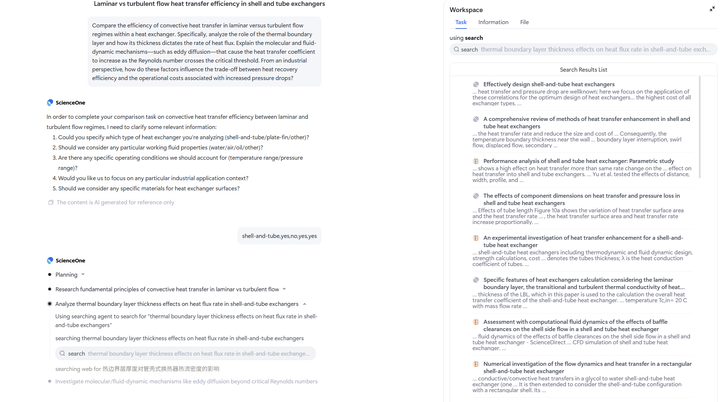
All search results for the task can be viewed in Information in the workspace.
2.5.3 Generated Files
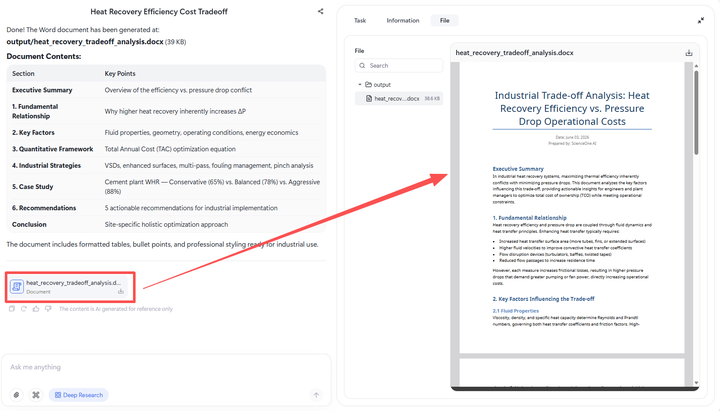
Process files such as analysis results may be generated during execution. Click specific actions to view file content in the workspace, with support for switching between source code and preview views.
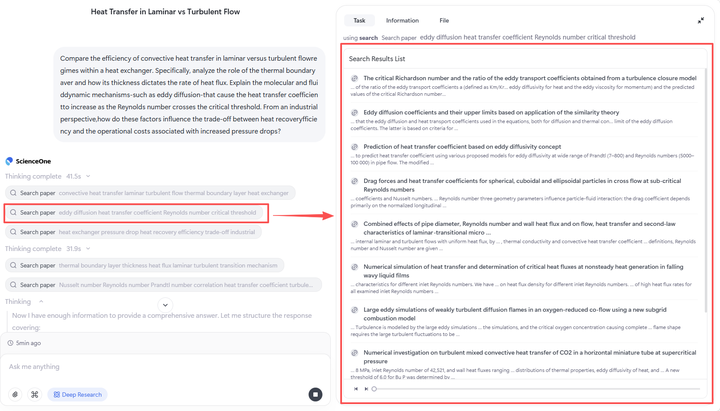
All task process results can be viewed by clicking "File".
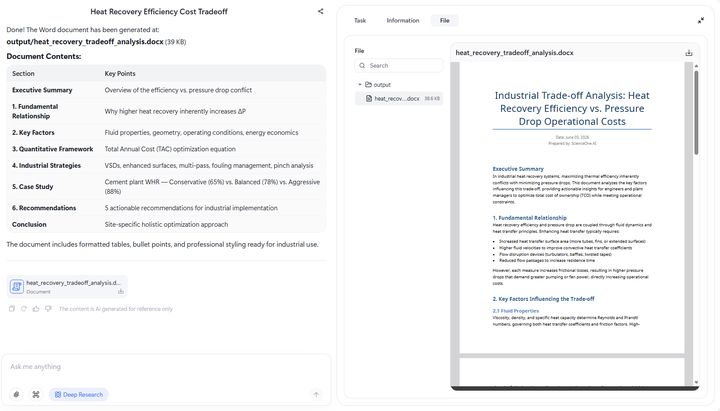
All task final results (such as visualization reports, reviews, etc.) can be viewed by clicking the "File" after task completion or finding the final result file in the workspace.
Library
Library provides in-depth interpretation services for carefully selected papers for researchers. Integration with literature management tools such as Zotero will be progressively implemented to further facilitate researchers' daily work.
3.1 Create A Library
When creating a literature library, select the corresponding library type based on literature type. The system has designed specialized interpretation logic for different literature types. Selecting the appropriate library type yields better usage results.
3.2 Upload Literature
File upload supports two methods.
- Direct Upload: Batch upload literature files directly on the literature library management page, suitable for initial library creation or centralized literature organization.
- Add Anytime: When using the literature library for research, you can add new literature files anytime as needed, facilitating timely supplementation of relevant materials. Both methods support mainstream document formats. Choose the appropriate upload method based on your specific usage scenario.
3.3 View Library
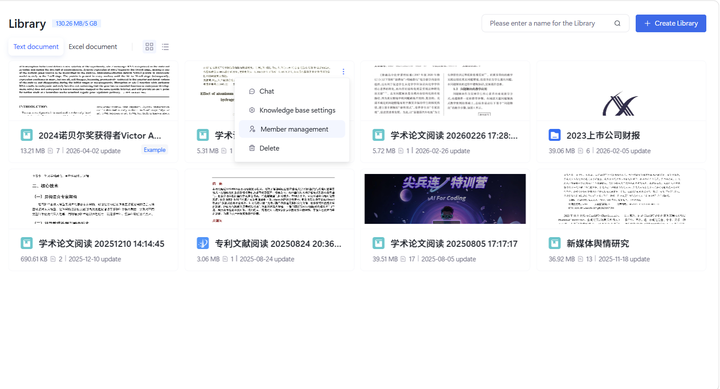
All literature libraries you create are visible only to you by default, ensuring privacy and security of research materials.
To collaborate with partners, you can add collaborators through the "Member Management" function and set access permissions for them.
Permissions are divided into three levels: "Administrator" has full operation permissions; "Collaborator" can create directories and upload literature; "Member" can only view, and cannot modify content. As the literature library creator, you can adjust member roles or remove members at any time. To ensure literature library security, team member management permissions are limited to the creator only.
3.4 Use Library
3.4.1 Conversation with Total Library
You can converse with all papers in the literature library, or select a single paper for intensive reading.
3.4.2 Conversation with One Paper
In a conversation with single paper, you can deeply interpret the selected paper, or switch to full library conversation mode at any time.
3.4.3 Guide for Paper
The Guide provides core content analysis of papers, covering research conclusions, research objectives, research methods, rationality, limitations, core viewpoints, evidence support, application prospects, and impact.
3.4.4 Research Graph for Paper
Research Graph provides citation tracing functionality, taking the current paper as the center to trace its references while exploring the paper's citation situation, helping you understand the complete academic context.
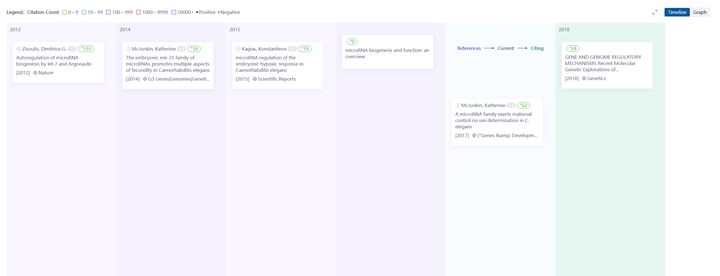
The visual network intuitively displays citation relationships between papers, helping you clearly see inter-paper citations for quick identification of key research gaps.
3.4.5 Chat for Paper
The system pre-interprets each paper, generates possible frequently-asked questions and pushes them to the interface. You can directly click to start a conversation.
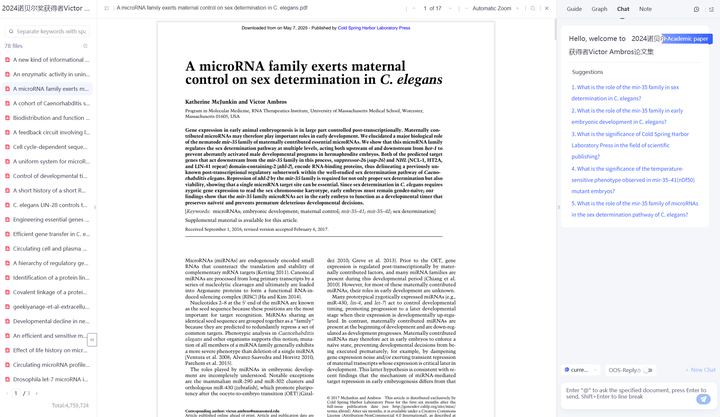
You can also ask questions independently based on actual needs. The system provides targeted paper interpretation and reference sources. Image content from papers is displayed directly in answers.
3.4.6 Notes for Paper
The library provides note functionality for recording reading notes. After switching the right sidebar to the "Note" module, select text on the left to automatically create annotations, then add your note content.
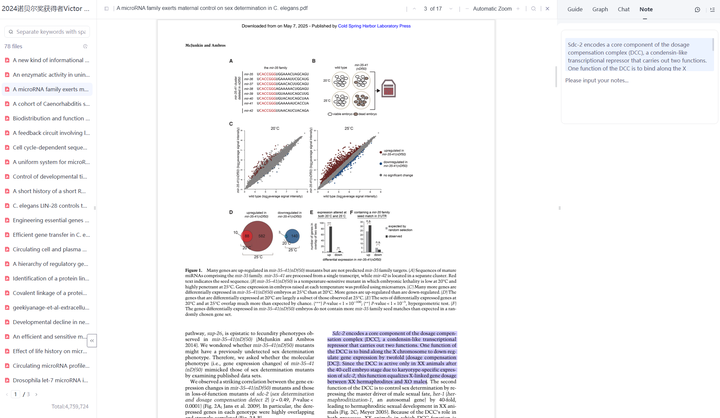
Feed
Click "Feed" in the left navigation bar to enter. The Feed aggregates 100+ high-quality academic information sources domestically and internationally, cross-disciplinary papers, news and other frontier information, helping you efficiently track the latest developments in your research field.
4.1 News Browsing
Research news is arranged in a waterfall flow as cards on the main page. Each card contains key information including content type (paper/news), source channel (e.g., "ScienceNet", "arXiv"), title, author, abstract, publication date, and accompanying images. The system defaults to showing the latest news of all types. Scroll down to load more content. Click interested cards to jump to the original website to view complete content.
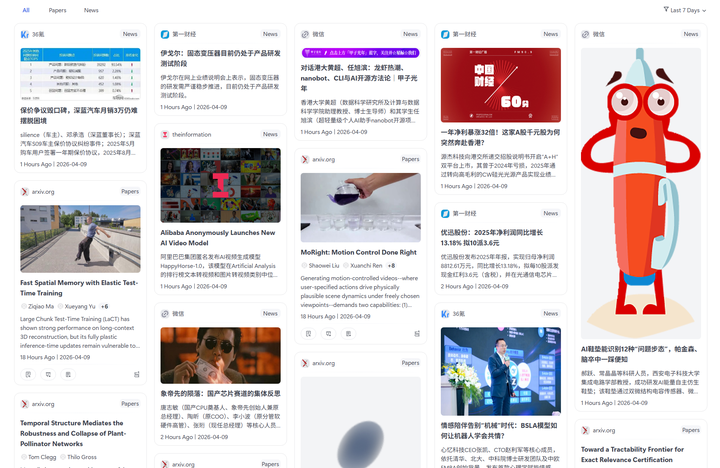
4.2 News Filtering
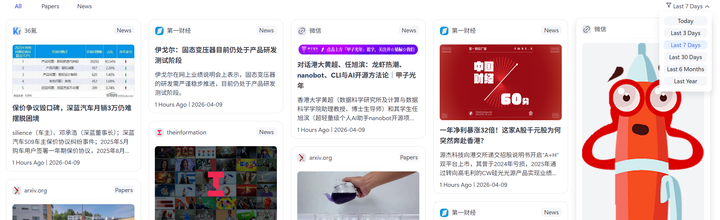
The system provides two filtering methods: content category and time range, helping you quickly locate needed information:
- Content Category Filtering: The top of the page provides content category tabs. Click "All" to display all types of news, click "Papers" to show only academic papers from arXiv, journal official websites, etc., click "News" to show only technology news and industry reports. The list automatically updates the content of the selected type.
- Time Filtering: Click the filter button in the top-right corner to select preset time periods such as "Last 7 Days" or "Last 30 Days" in the pop-up time selector. After clicking confirm, the list updates to news within the specified time period, helping you periodically review academic progress for specific periods.
4.3 Functions for Papers
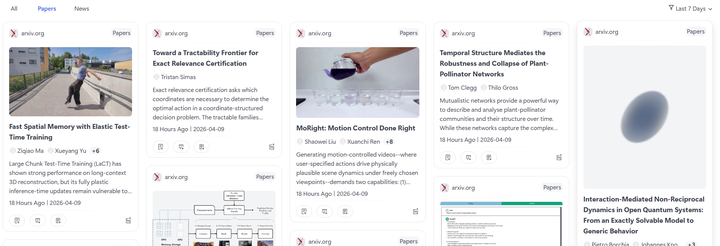
For paper-type news, when you discover interesting papers in news cards, you can quickly complete reading, generate PPT/posters, favorite to literature library and other operations through operation buttons at the bottom of paper cards:
- View PDF: Click the "View" button in the bottom-left to open the complete paper PDF directly in the browser, supporting online reading and download.
- Generate Academic PPT: Click the "Generate Academic PPT" button in the bottom-left. The system automatically calls our "Academic PPT" to generate structured academic presentation PPT based on paper content.
- Generate Academic Poster: Click the "Generate Academic Poster" button in the bottom-left. The system automatically calls our "Academic Poster" to transform core paper content into visualized academic posters.
- Favorite to Library: Click the "Favorite to Library" button in the bottom-right to save the paper PDF to your personal literature library. You can uniformly view and manage favorited literature in the "Library" module in the left navigation bar.
ScienceHub
5.1 Model
The Model module serves researchers across all disciplines. It integrates domain-specific large scientific models and agent resources available on the platform, covering a range of cutting-edge research fields including solar physics, materials innovation, carbon accounting, particle physics, and near-space science. Users can browse model information and access available capabilities for online trial.
5.1.1 Accessing the Model Entry
- Click Model in the left navigation bar to enter the module.
- The "All" models page is displayed by default.
5.1.2 Browsing and Searching Models
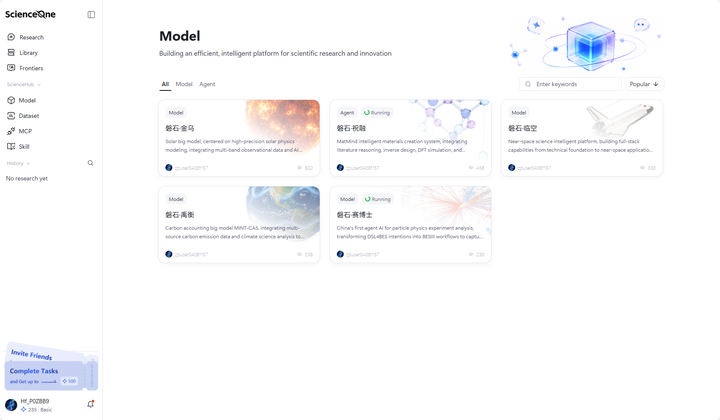
- Category switching: Three tabs are available at the top: All, Model, and Agent
- Model — Displays all models of the Model type
- Agent — Displays all models of the Agent type
- Search: Enter keywords (both Chinese and English supported) in the search box, and the system will perform fuzzy matching against model names and descriptions.
- Sorting: Results are sorted by Popular by default. Click the arrow to toggle between ascending and descending order.

5.1.3 Viewing Model Details
- Click any model card to open its detail page.
- The detail page presents information such as research background, core capabilities, and key outcomes. Details may vary slightly from model to model.
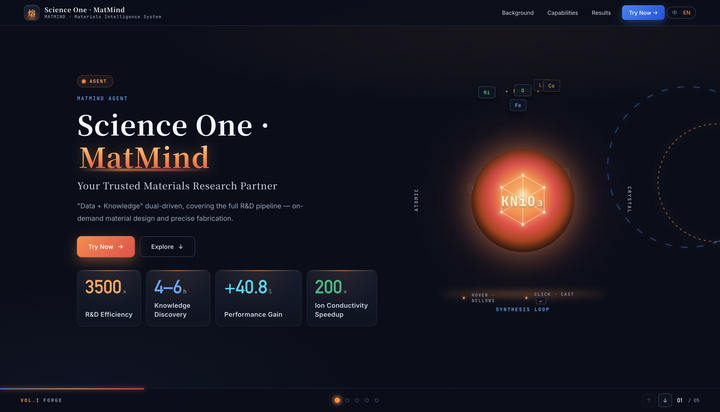
- Model example — ScienceOne · MatMind:
- On the model list page, click the ScienceOne · MatMind Agent card to access its dedicated detail page.
- A Chinese/English language toggle is available at the top right of the detail page to fit different reading preferences. Users can scroll down to browse content section by section, or click the Explore In-depth button to jump directly to the full introduction covering research background, core capabilities, key outcomes and more.
- Click the Try Now button on the page to redirect to the MatMind Intelligent Materials Innovation Platform. The platform is equipped with multiple specialized agents for niche research directions, covering functional scenarios such as material solution generation, material design, and theoretical material computation. Select the corresponding agent to start using.
5.2 Dataset
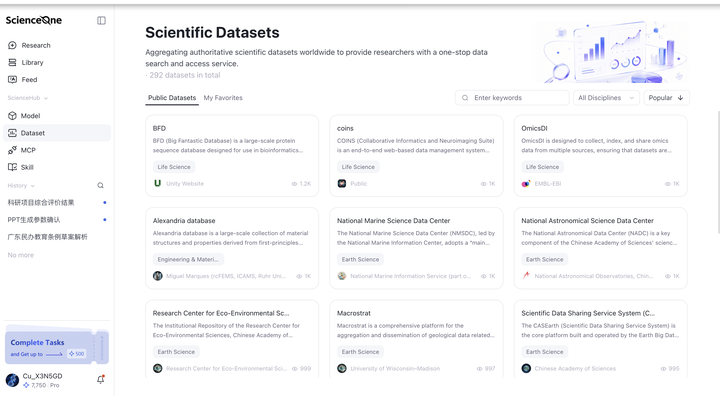
The Dataset module lets you browse and search authoritative scientific datasets. You can bookmark any dataset you are interested in, turning scattered data access into a centralized, ready-to-use experience.
5.2.1 Finding the Dataset Entry
- Click Dataset in the left navigation bar.
- The default view shows Public Datasets.
5.2.2 Browsing and Searching Datasets
- Switch tabs: Two tabs appear at the top:
- Public Datasets — displays all datasets on the platform.
- My Favorites — displays datasets you have bookmarked.
- Search: Enter keywords (Chinese or English) in the search box; the system performs fuzzy matching against names and descriptions.
- Discipline filter: Use the top dropdown to filter by discipline (e.g., Life Sciences, Pharmaceutical Sciences, Chemistry). All disciplines are shown by default.
- Sort: Defaults to Popular order; you can switch to Name order and click the arrow to toggle ascending/descending.
5.2.3 Adding Datasets to Favorites
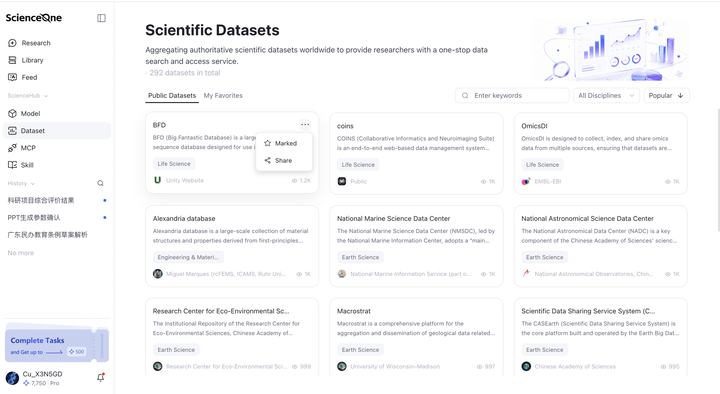
- Hover over a dataset card — a ··· (More) button will appear.
- Click ··· to expand the options: Marked / Unmarked and Share.
- Click Add to Favorites → the button changes to Added to Favorites, and the dataset is synced to My Favorites.
- Click Added to Favorites again to remove it from favorites.
- Note: After removing a favorite, the page does not refresh automatically — you need to refresh manually to see the change.
5.2.4 Viewing Dataset Details
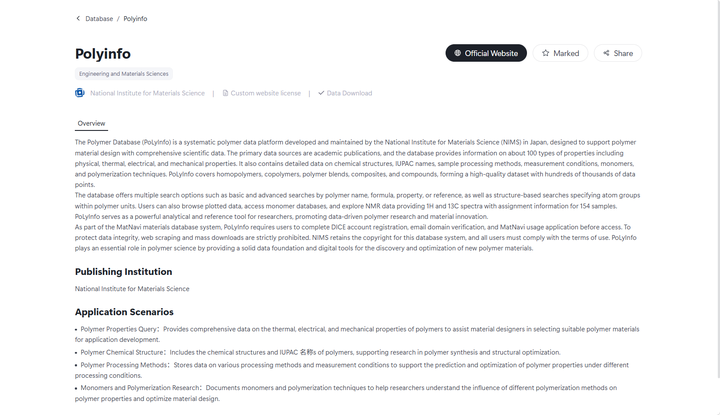
- Click any dataset card to open its detail page.
- The detail page shows: dataset name, all discipline tags, data source, license, and access method.
- Three action buttons are provided:
- Visit Official Website — jump directly to the dataset's official source page.
- Marked / Unmarked — bookmark or unbookmark.
- Share — copy the detail page link to share useful datasets.
- The Overview section at the bottom displays the full documentation for the dataset.
5.3 MCP
The MCP module is used to connect and manage external MCP tools. They can be invoked on demand during scientific conversations, helping researchers flexibly build their own intelligent toolkits.
5.3.1 Finding the MCP Entry
- Click MCP in the left navigation bar.
- The default view shows Public MCP Servers.
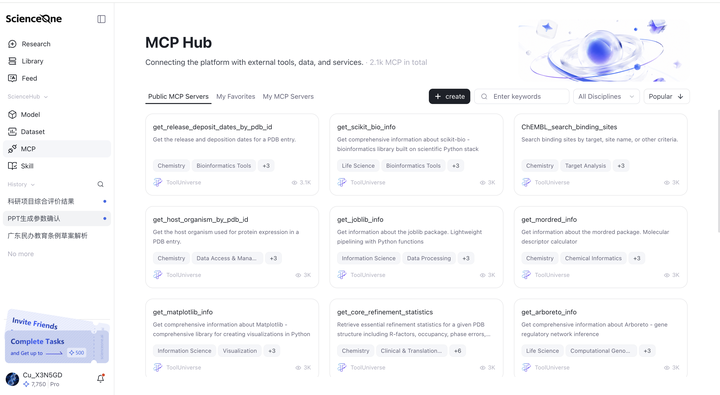
5.3.2 Browsing and Searching MCP Tools
- Switch tabs: Three tabs appear at the top:
- Public MCP Servers — displays all tools on the platform.
- My Favorites — displays tools you have bookmarked.
- My MCP Servers — displays tools you have created.
- Search: Enter keywords (Chinese or English) in the search box; the system performs fuzzy matching against names and descriptions.
- Discipline filter: Use the top dropdown to filter by discipline. All disciplines are shown by default.
- Sort: Defaults to Popular order; you can switch to Time or Name order and click the arrow to toggle ascending/descending.
- Count: The title area displays the total number of invocable MCPs, updating live as you switch tabs.
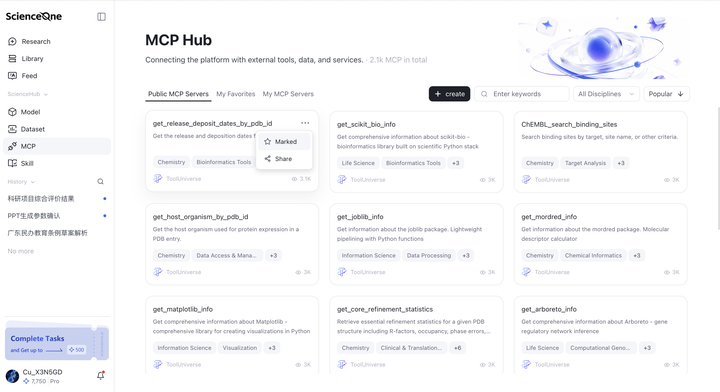
5.3.3 Adding MCP Tools to Favorites
- Hover over a tool card — a ··· button will appear.
- Click ··· to expand: Marked / Unmarked and Share.
- Under Public MCP Servers, click Marked → the button changes to Unmarked, and the tool is synced to My Favorites.
- Click Marked again to remove it.
- Note: After removing a favorite, the page does not refresh automatically — you need to refresh manually.
5.3.4 Viewing MCP Tool Details
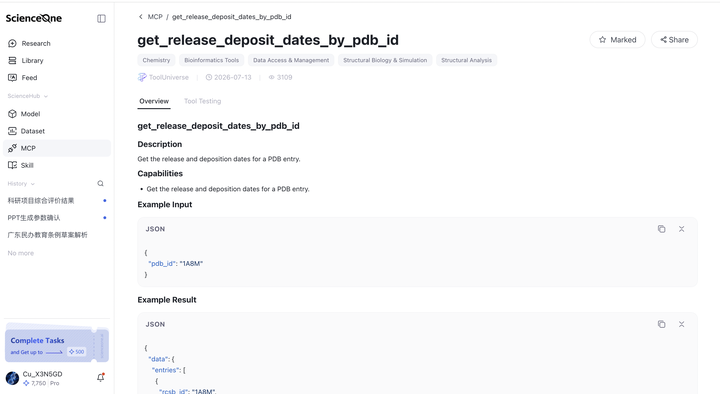
- Click any tool card to open its detail page.
- The detail page shows: tool name, discipline tags, developer, creation time, and popularity.
- Available actions on the detail page:
- Marked / Unmarked
- Share — copy the detail page link to share useful tools.
- The Overview section displays the tool's full documentation.
- The Tool Testing section — invoke the tool directly to test it and view returned results.
5.3.5 Creating Your Own MCP Tool
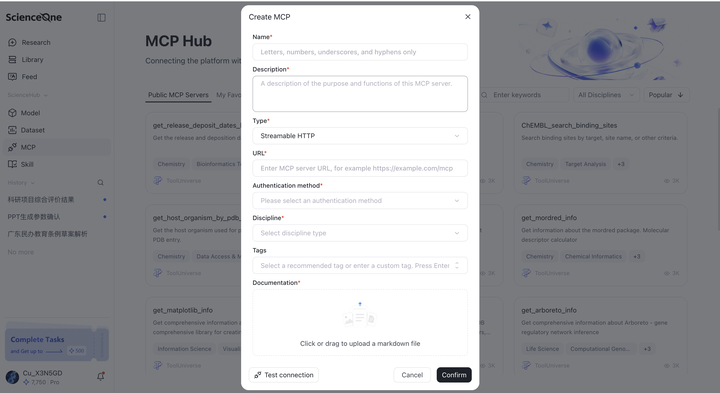
- On the MCP page, click the + create button in the top-right corner.
- Fill in the form:
- Name (required)
- Description (required) — a brief explanation of the tool's purpose.
- Type: Select SSE or Streamable HTTP.
- URL: Enter the tool's access URL (must start with http:// or https://).
- Authentication method: Choose one of three options:
- No Auth — connect directly.
- Bearer Token — provide an access token.
- Custom Headers — provide key-value pairs.
- Discipline: Select discipline type
- Tags: Choose recommended tags or type custom ones; press Enter to confirm, Backspace to delete; up to three tags are supported.
- Documentation: Click or drag to upload a markdown file
- Click Confirm.
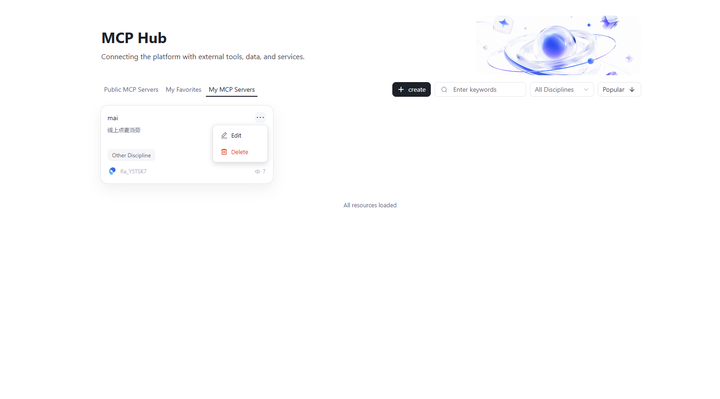
- After successful creation, the new tool appears at the top of My MCP Servers.
- You may also click Test Connection first — if the connection passes, the MCP is functioning normally; then click Confirm.
5.3.6 Managing My MCP Tools
- In My MCP Servers, you can Edit or Delete any tool.
- The tool name cannot be changed after creation; all other fields are editable.
- Deletion requires a second confirmation.
5.4 Skill
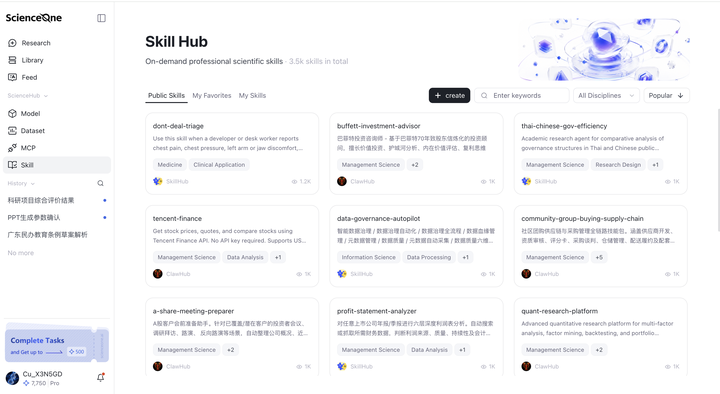
The Skill module manages methods and workflows that AI can invoke. The platform includes thousands of high-quality built-in Skills covering common research scenarios, allowing users to turn their unique research experience into reusable assets.
5.4.1 Finding the Skill Entry
- Click Skill in the left navigation bar.
- The default view shows Public Skills.
5.4.2 Browsing and Searching Skills
- Switch tabs: Three tabs appear at the top: Public Skills, My Favorites, My Skills.
- Search: Enter keywords (Chinese or English); the system performs fuzzy matching.
- Discipline filter: Use the top dropdown to filter by discipline. All disciplines are shown by default.
- Sort: Defaults to Popular order; you can switch to Time or Name order and toggle ascending/descending.
- Count: The title area displays the total number of invocable Skills, updating live as you switch tabs.
5.4.3 Adding Skills to Favorites
- Hover over a skill card — a ··· button will appear.
- Click ··· to expand: Marked / Unmarked and Share.
- Under Public Skills, click Marked → the button changes to Unmarked, and the skill is synced to My Favorites.
- Click Marked again to remove it.
- Note: After removing a favorite, the page does not refresh automatically — you need to refresh manually.

5.4.4 Creating Your Own Skill
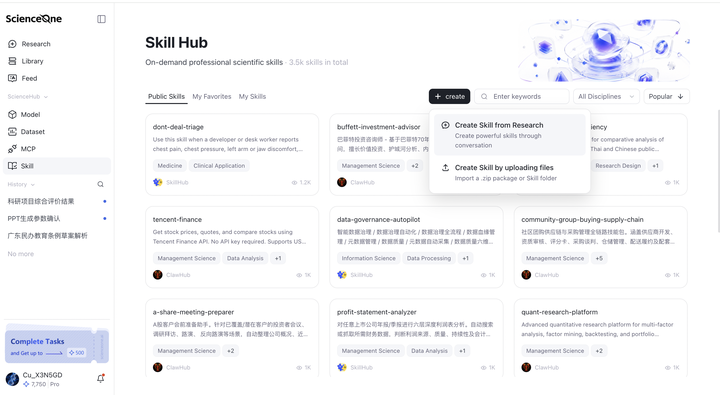
Method 1: Create via Research
- Hover over the Create button.
- Two options appear. Click Create via Research.
- You are redirected to the Research, which auto-calls the /skill-creator skill, which creates the skill based on your description.
Method 2: Create via File Upload
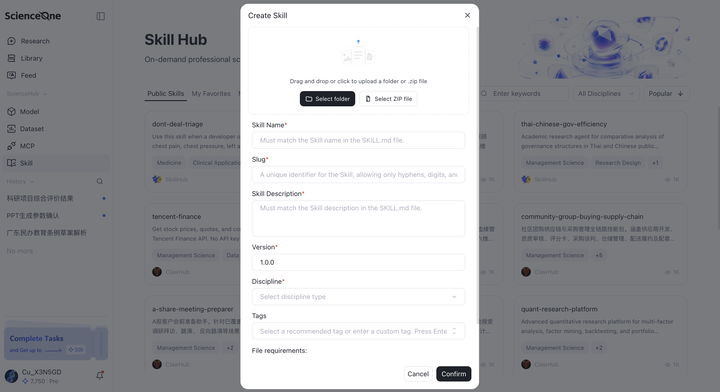
- On the Skill page, click the + create button.
- Drag and drop, or click to upload a skill folder or .zip archive.
- The system auto-detects and pre-fills: skill name, description, and version number (defaults to 1.0.0 if not specified).
- Fill in the Slug — only hyphens, numbers, and lowercase letters are allowed; this cannot be changed after creation.
- Discipline: Select from the dropdown.
- Tags: Choose recommended tags or type custom ones; press Enter to confirm, Backspace to delete; up to three tags supported.
- Click Confirm; the system automatically reviews the submission (prohibited content, file integrity, code security, etc.).
- If review fails, the specific reason is shown (e.g., prohibited content detected, missing SKILL.md, etc.).
5.4.5 Publishing a Skill Publicly
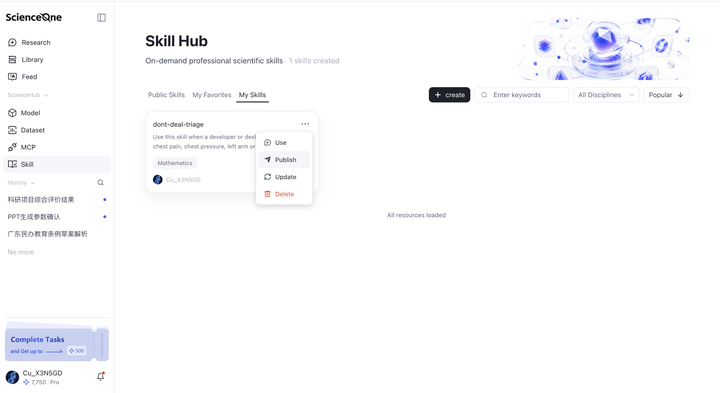
- In My Skills, find the skill you want to publish.
- Click the Publish button.
- A second confirmation dialog appears: "Once published, this Skill cannot be unpublished."
- After confirming, the skill appears in Public Skills and is marked as Published.
5.4.6 Updating a Skill
Method 1: Update via Research
- Update the skill through conversation.
- After the conversation ends, a Save button appears.
- Click it to update the current skill.
Method 2: Update via File Upload
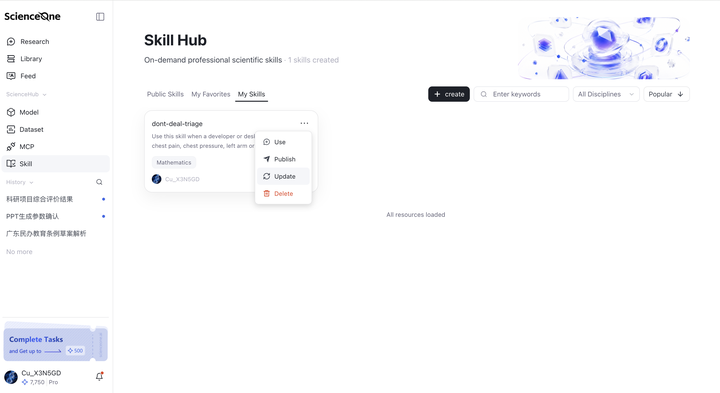
- In My Skills, click the Update button.
- Re-upload the skill folder or .zip archive.
- You may revise the name, description, version number, discipline, and tags. The version number must be incremented from the current version.
- Click Confirm Update; the system re-runs automatic review.
5.4.7 Deleting a Skill
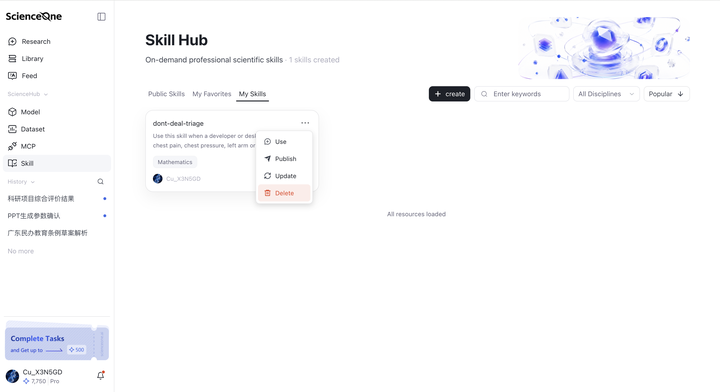
- In My Skills, click the Delete button → confirm a second time to delete.
- Note:
- Skills that have not been published are permanently removed.
- Skills that have been published disappear from My Skills but remain visible in Public Skills.
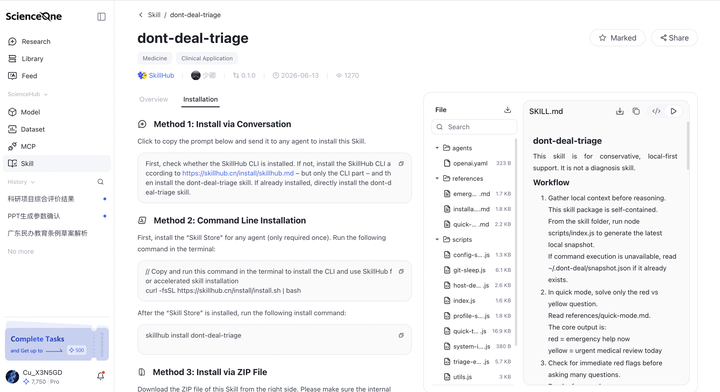
5.4.8 Viewing Skill Details
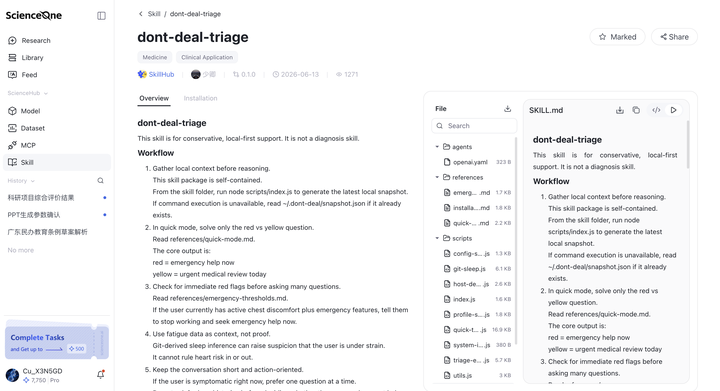
- Click any skill card to open its detail page.
- The detail page shows: skill name, discipline tags, developer, version number, creation time, and popularity.
- Available actions:
- Marked / Unmarked
- Share — copy the detail page link.
- The Overview section displays the skill's full documentation.
- The Installation section provides installation instructions.
5.4.9 Using Platform Skills on External Platforms
- On the skill detail page, find the Installation section.
- Three cross-platform installation methods are provided:
- Chat Installation — copy the prompt and send it to any AI agent.
- CLI Installation — for agents that support the Skillhub CLI.
- ZIP Installation — download the skill archive and upload it to any AI agent.
- The Skill Files panel on the right side of the detail page provides a file tree directory with support for search, downloading the archive, and copying individual file contents.
5.4.10 Using a Skill
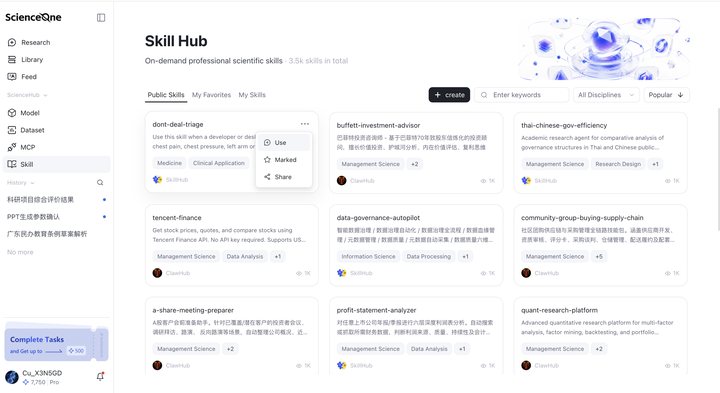
- Hover over a skill card — a ··· button appears.
- Click ··· to expand the options: Use, Marked / Unmarked, and Share.
- Under Public Skills, click Use → automatically jumps to the Research, which displays how to use the skill in the conversation.
History
The History module records all your research tasks in the Research, helping efficiently manage and track research progress. Click any task to enter the detailed interface and view complete information and latest progress. Support real-time monitoring of task progress status, and click to view details.
6.1 Records
Clearly displays all created research tasks, including task names, creation times, last update times, and brief descriptions. You can filter historical conversation tasks by different modes.
History records display current conversation task status (in progress, manually stopped, execution failed). You can view different types of historical tasks. Click any history record to enter that conversation and view current progress and related data.
6.2 Marked
It displays research tasks marked as favorites, with special identifiers for easy recognition and access.
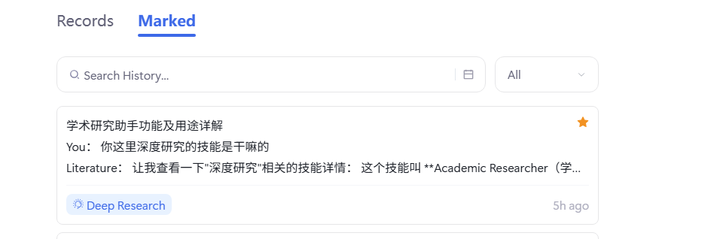
You can add tasks to or remove tasks from the favorites list at any time, allowing flexible management of favorite records.
You can sort by favorite time, task priority, or completion progress, and keyword search functionality is provided to quickly locate favorite tasks.
User Settings
In the bottom-left corner of the ScienceOne platform main page, you can view user information, and view system notifications. Click the username in the bottom-left corner to pop up the user settings menu, where you can view available coins balance and packages, perform benefit redemption, view user center, view usage instructions, submit feedback, contact us, change system language,set system themes, and log out. Click "More Information" to further understand our platform information, view update logs, and review rules and agreements.
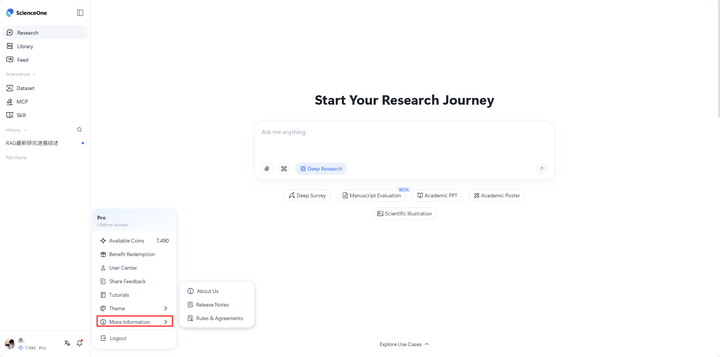
7.1 Available Coins
After clicking the username, your current available coins are displayed in the pop-up menu. Click "Available Coins" to enter the "Coin Center", where you can view coin overview and subscription information.
7.2 User Center
Click the "User Center" option to enter the personal user center page.
The "Profile" includes two sections: "Account Information" and "Personal Homepage".
7.2.1 Account Information
You can view and manage your basic information here.
Information Display: The page clearly displays your profile including avatar, username, work, account ID, account, phone number, email address, and registration time.
Information Editing: For the username field, you can click the "Edit" button on the right to modify; for phone number and email fields, you can click the "bind" button on the right to bind corresponding contact methods; for account password fields, you can click the "reset" button on the right to update your account password.
Account Cancellation: The bottom of the page provides an "Delete Account" button for permanently deleting your account.
7.2.2 Personal Homepage
You can create your exclusive academic card here.
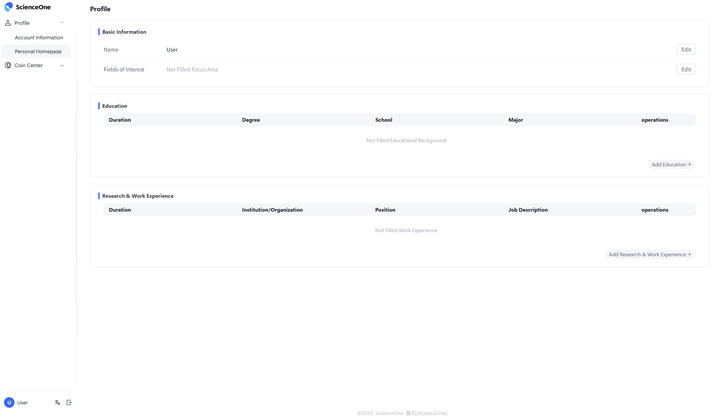
Information Display: The page displays your basic information, educational background, and research/work experience.
Information Editing: In the basic information section, you can click the "Edit" button to modify your name and add/remove research areas; in the education section, you can click "Add Education" in the bottom-right to add educational experiences; in the research/work experience section, you can click "Add Research&Work Experience" in the bottom-right to add experiences, with support for "Delete" and "Edit" for each experience.
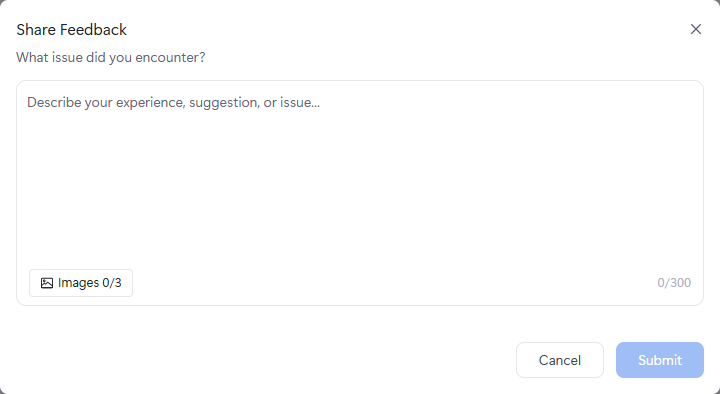
7.3 Send Feedback
Select the "Send Feedback" option to submit opinions and suggestions about the system, supporting online feedback within the platform.
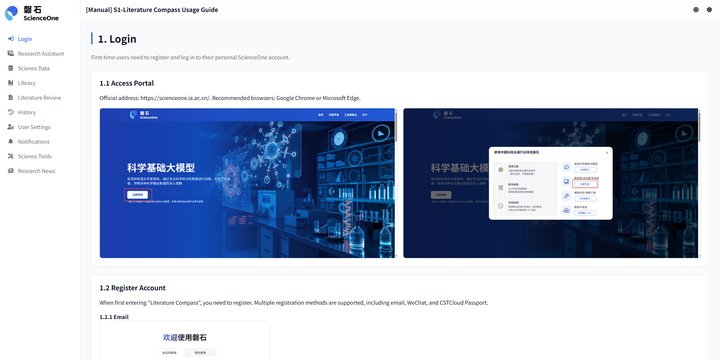
7.4 Tutorials
Select the "tutorials" option to view the system's detailed user tutorials, understanding system functions and usage methods, with support for switching between Chinese and English bilingual viewing.
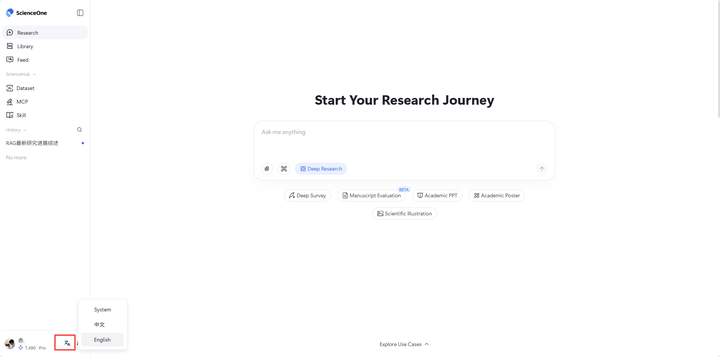
7.5 Language Settings
ScienceOne supports switching between Chinese and English system languages. In the user settings menu, click Language, and select your desired language from the list. The interface will automatically switch to that language version.
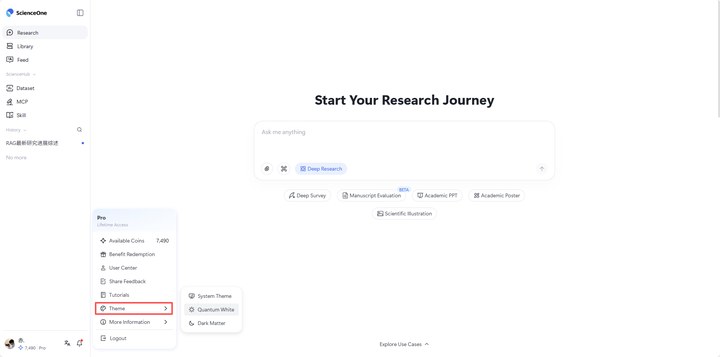
7.6 Theme Settings
After clicking the username, click "Theme" in the pop-up menu, then select theme options such as "Quantum White", "Dark Matter", or "System Theme" to switch the system's overall visual style. You can choose different themes based on personal preferences for a more comfortable user experience.
7.7 More Information
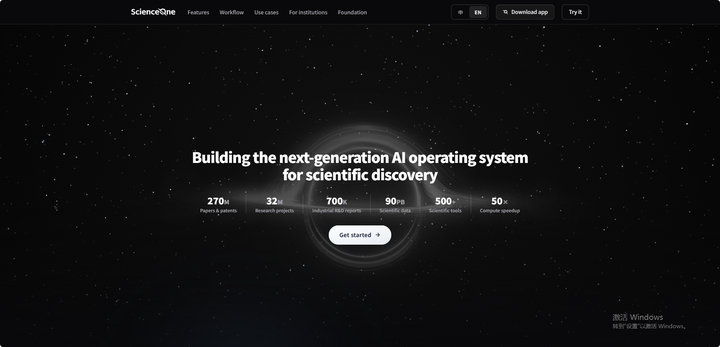
7.7.1 About Us
Select the "About Us" option to view the system introduction, includingFeatures, WorkflowUse cases, For institutions, Foundation.
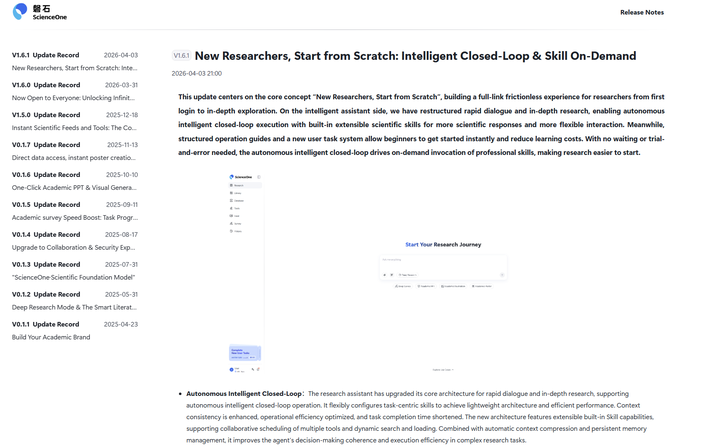
7.7.2 Release Notes
Select the "Release Notes" option to view system version update logs, with support for viewing main content updates for each version.
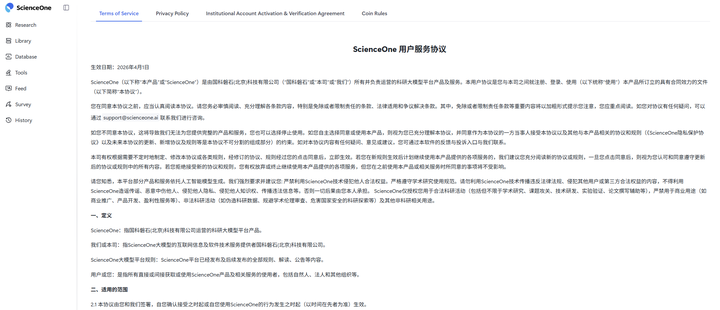
7.7.3 Rules & Agreements
Select the "Rules & Agreements" option to view various rules and agreements, including ScienceOne's Terms of Services, Privacy Policy, Institutional Account Activation & Verification Agreement, and Coin Rules.
7.8 Logout
Click the "Logout" button at the bottom of the menu to securely exit your current account. The system returns to the login page. For account security, it is recommended to log out after completing operations.
Notification System
On the system's main page, click the bell button in the bottom-left corner to pop up the notification center menu. In this menu, you can view and handle messages, follow up on task reminders, and receive system notifications.
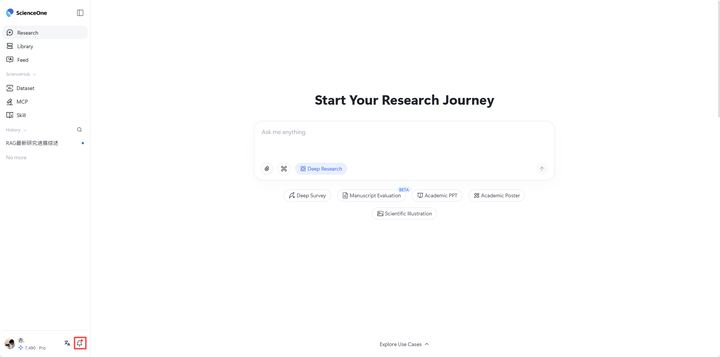
8.1 Notification Center
The notification center displays "All" messages by default. You can click the "Unread" tab to quickly filter all notifications that have not been viewed. If there are no unread messages, this view displays "No unread messages".
Each unread message has a red dot identifier on its right side. After you click the message and complete corresponding interaction (such as jumping to a page or viewing a popup), the red dot automatically disappears, indicating the message has been read.
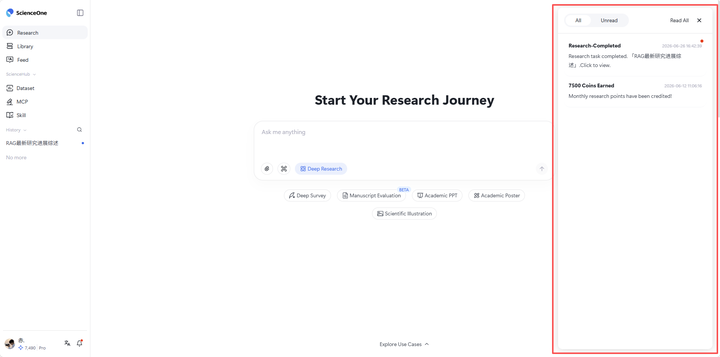
At the top of the notification center, you can find the "Read All" button. After clicking, all unread messages are immediately marked with read dot, will (including those on entry icons) disappear.
8.2 Instant Popups
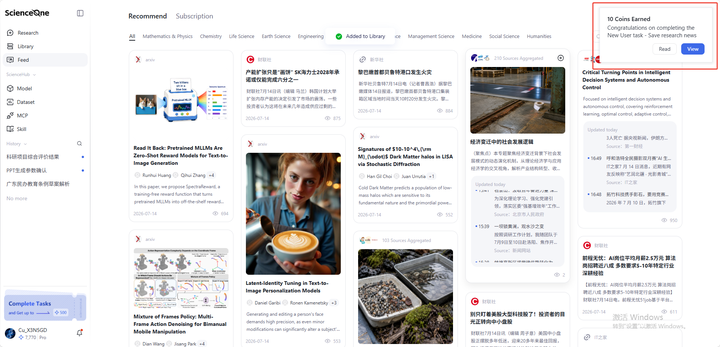
To ensure you can promptly understand the latest progress of key tasks, the system sends reminders through instant popups in the upper-right corner of the interface. These reminders proactively inform you of task success, failure, or states requiring your confirmation, and guide you for subsequent operations.
Coin System
9.1 Coin Center
Click the username in the bottom-left corner of the ScienceOne platform, then click "User Center" in the pop-up menu to enter the "Coin Center".
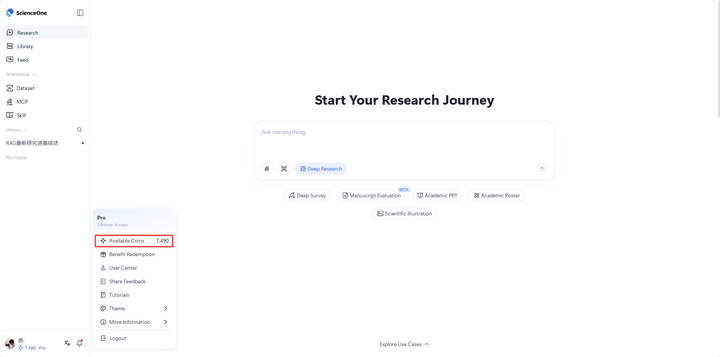
The "Coin Center" includes "Coin Overview", "Activity Center" and "Plans & Top-Ups" modules.
"Coin" serves as the virtual currency system for experiencing the Panshi website, usable only within this site. Based on different validity durations, it is divided into three types:
- Daily Coin: Valid on the day obtained, expires at 24:00 on acquisition day.
- Time-Limited Coin: 30-day validity period, expires at 24:00 thirty days after acquisition.
- Permanent Coin: Permanently valid during normal account usage.
9.2 Coin Overview
"Coin Overview" allows you to obtain overall coin-related information on the ScienceOne, including your membership information, current available research value, and historical research value details.
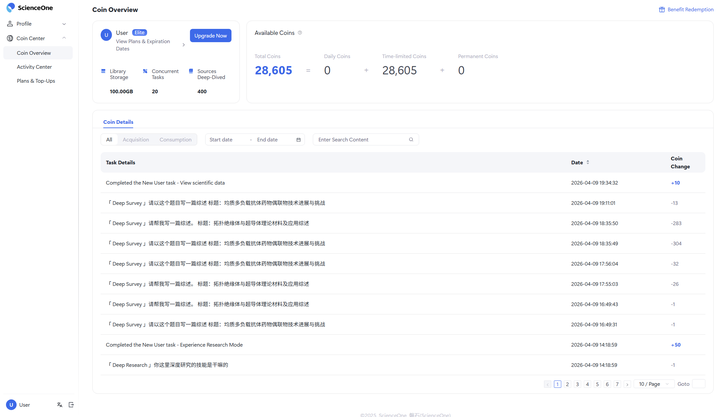
9.2.1 User
Personal information displays your membership information. You can understand all benefits under your current membership level here.
9.2.2 Available Coins
This displays your current available coins, including daily coins, time-limited coins, and permanent coins.
9.2.3 Coin Details
Coin details display all your historical records involving coin acquisition and consumption. You can choose to view detailed coin consumption or acquisition, and also support searching to view details within some time periods.